.png)
How apply Change Request type to your Automation Object
Int4 Suite can validate whether your change requests are done properly. Once your changes are working fine and are accepted, Int4 Suite can automatically create new test case versions that align with the change request.
In scenarios where you have already collected your test cases for the interface subject to change in the change request, after applying the change in your mapping (e.g., adding a new field to the structure after mapping), upon executing the test cases in Int4 Suite, you will notice that they are failing. This is the expected behavior.
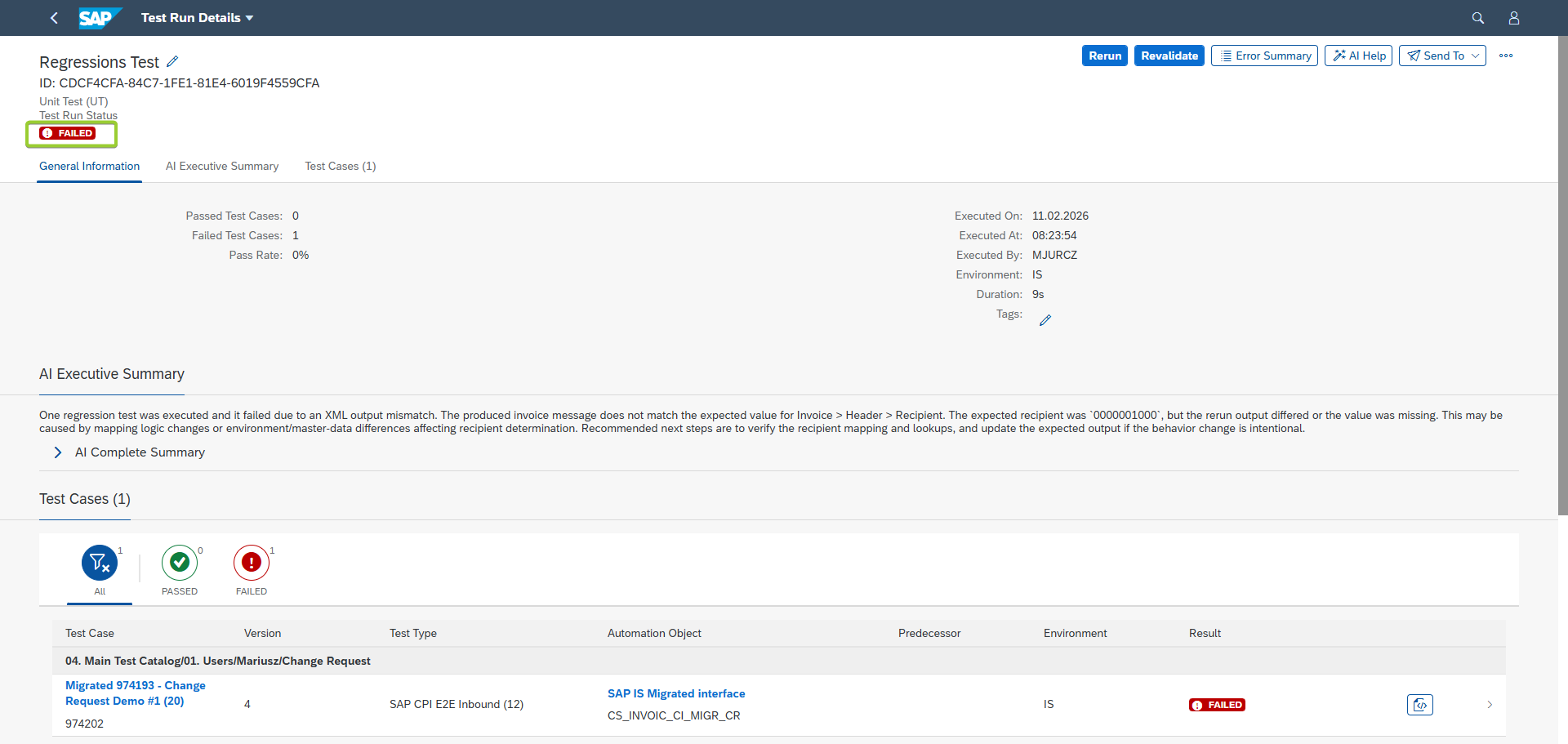
In order to validate the Change Request you need to follow steps below.
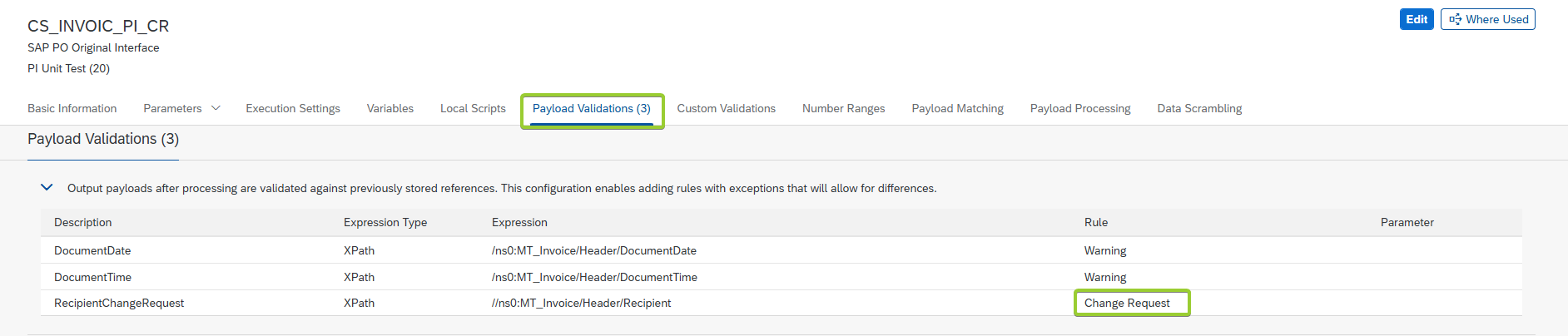
On Automation Object, you can add a Payload Validation rule of Rule Type “Change Request.”
Now before you run your Test Case, you need to choose correct Test Run Type - Change Request Test (CR). Here is an instruction how can be done:
-
Select your Test Case(s):
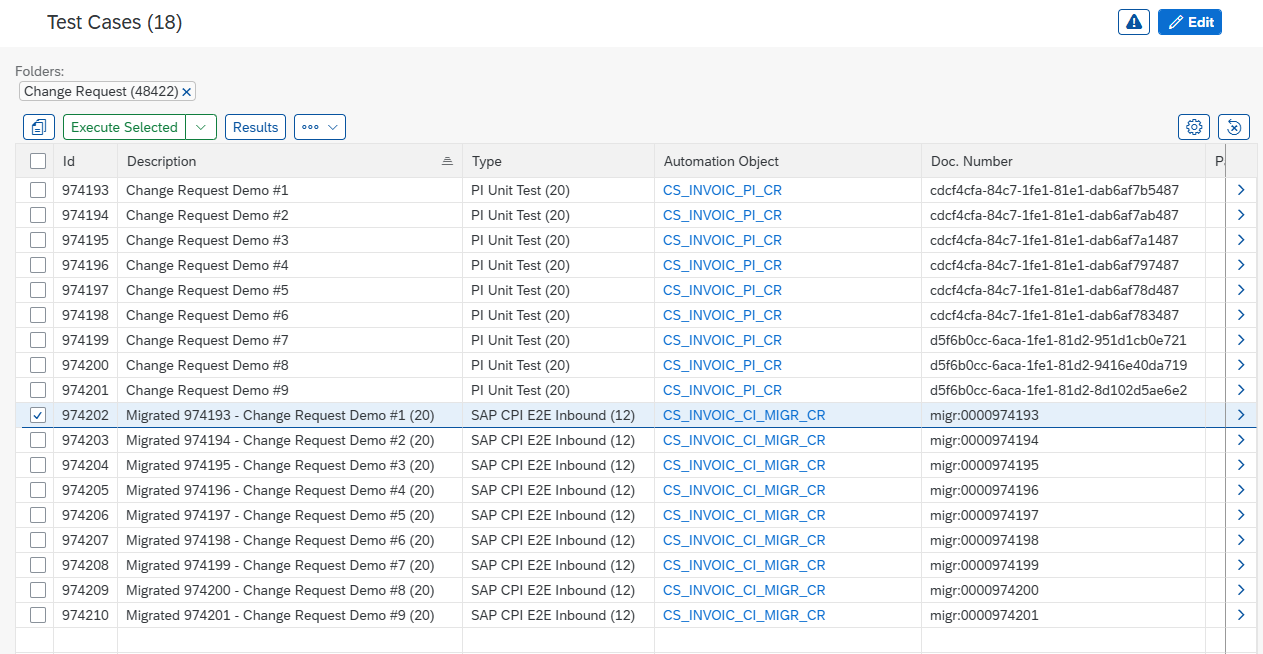
Select Test Case(s) using checkbox. -
Select an option “Execute Selected“, then “Execute Selected w/ Parameters“:
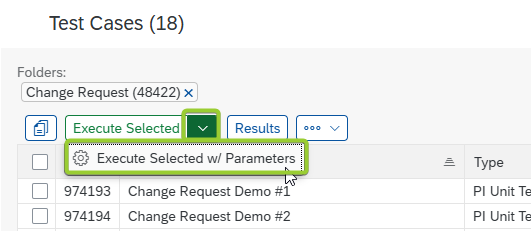
Select button “Execute Selected w/ Parameters“. -
New Window will appear. Select Test Run Type - “Change Request Test“:
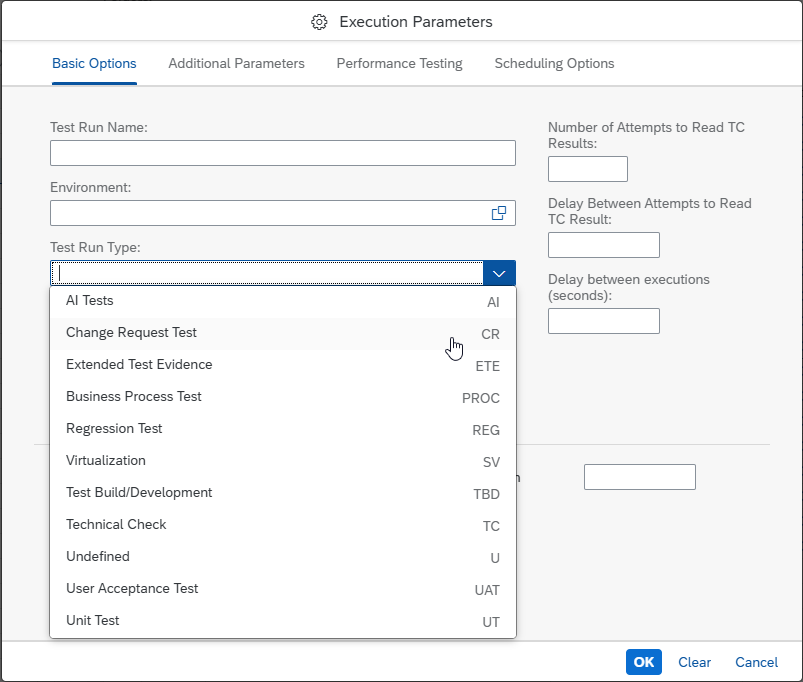
Select Test Run Type - “Change Request Test“. -
After the Test Run is Complete, you can see couple of differences. The status is marked as “Passed“. There is also an orange box with information of Test Type:
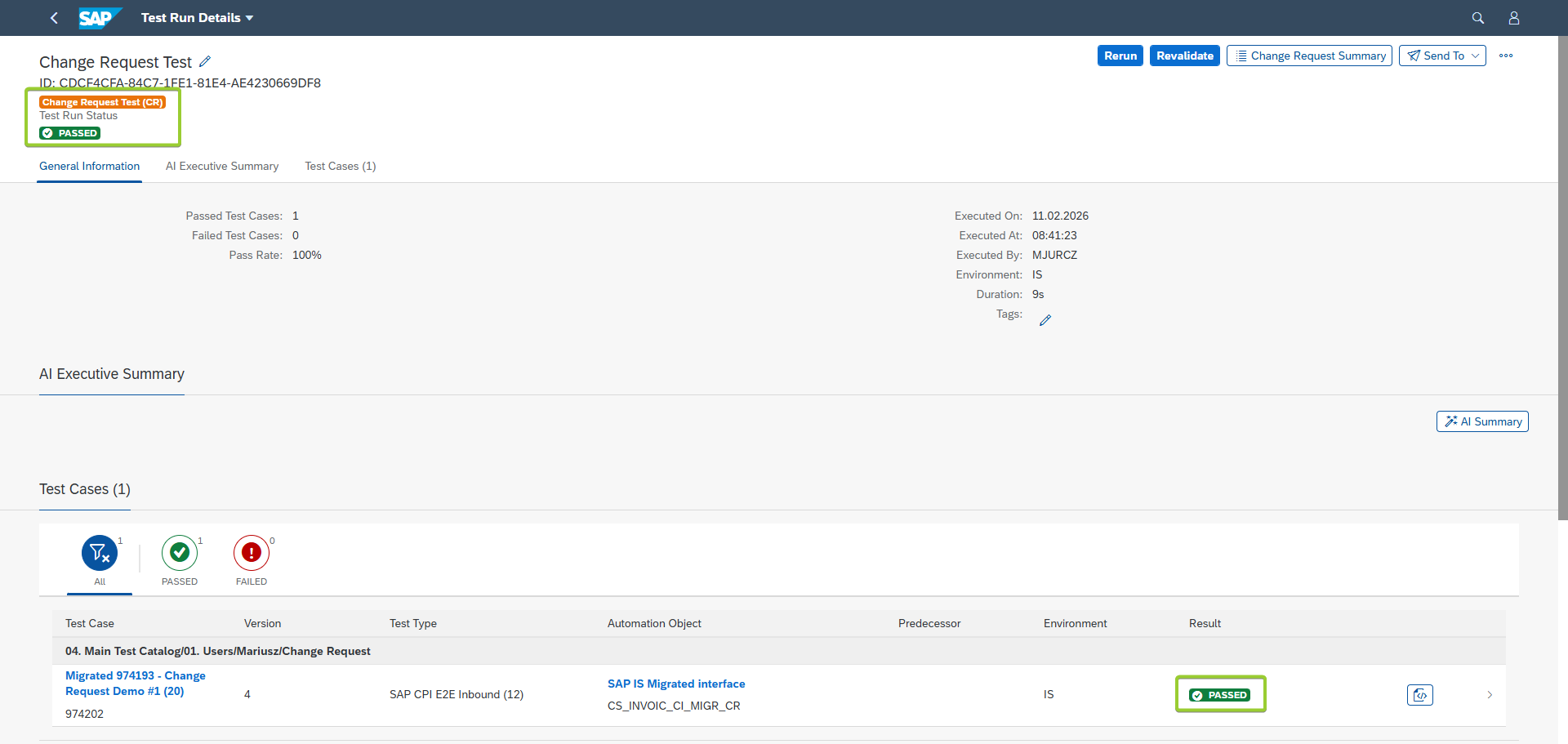
Result of the Test Run of type “Change Request Test“. -
When you check the results, you can see that added field is highlighted in green color instead of yellow or red.
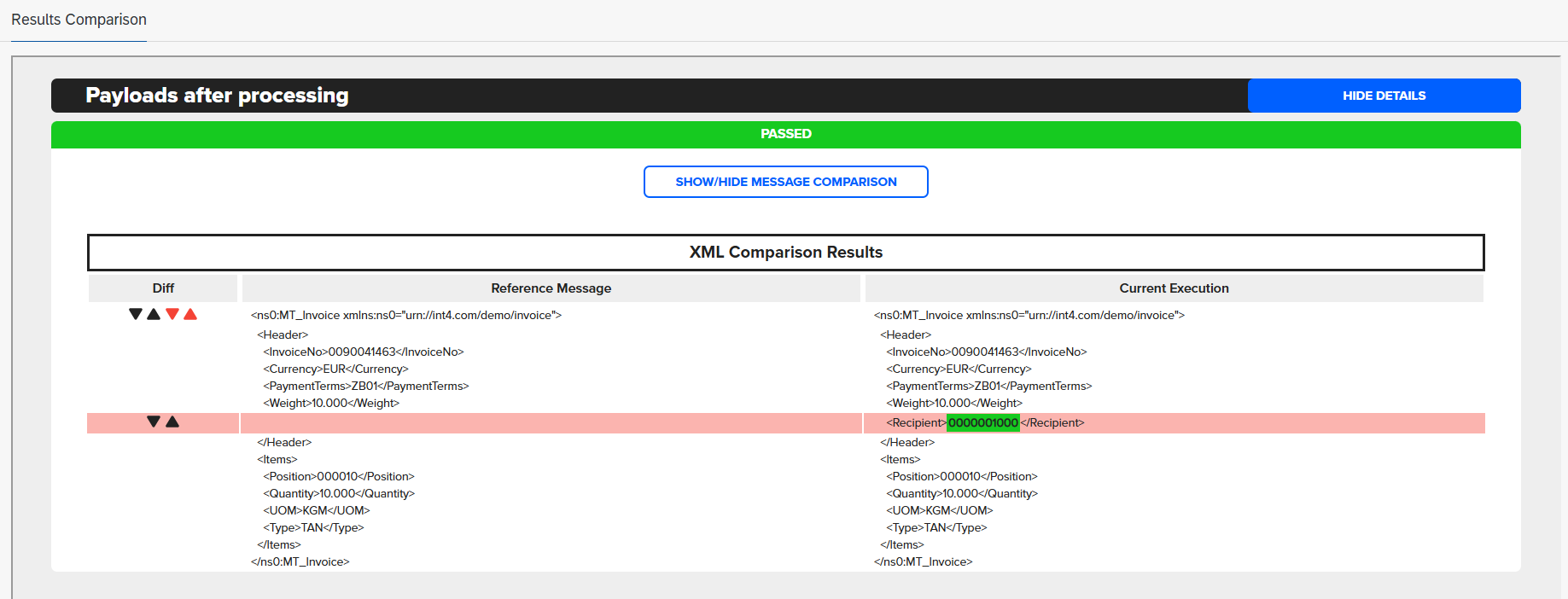
Result of comparison with rule type “Change Request”. -
On main Test Run screen you can see “Change Request Summary“ button:

“Change Request Summary“ button.
and see the list:

With this approach you can still test your interfaces, even though Change Requests are applied on your Development or Quality landscape.
Updating Test Cases with Change requests
There is an option to update Test Cases with Change Request you applied. Login to SAP GUI and transaction: /INT4/IFTT_COCKPIT.
Select folder with Test Cases, then select Test Cases that you want to update and click on “Test Case Results” button:
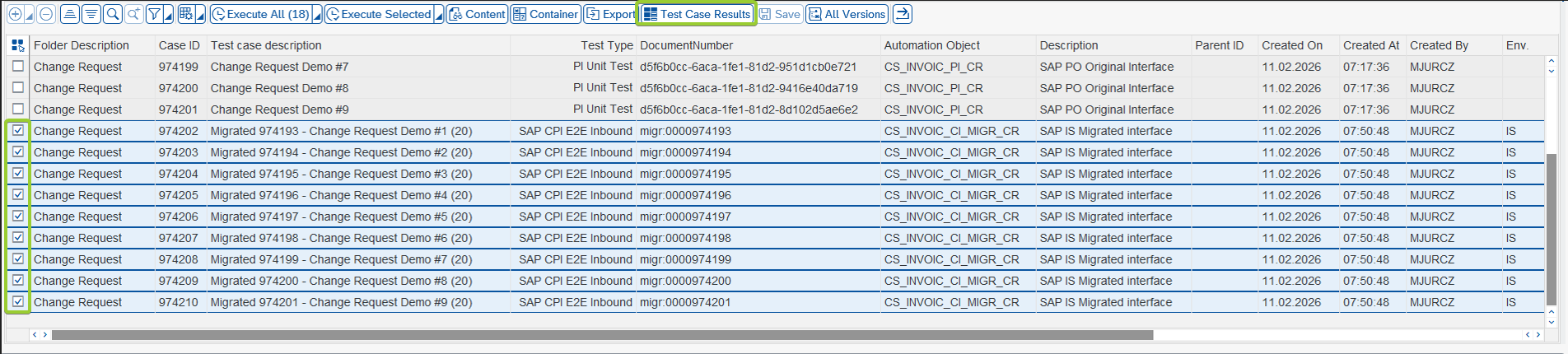
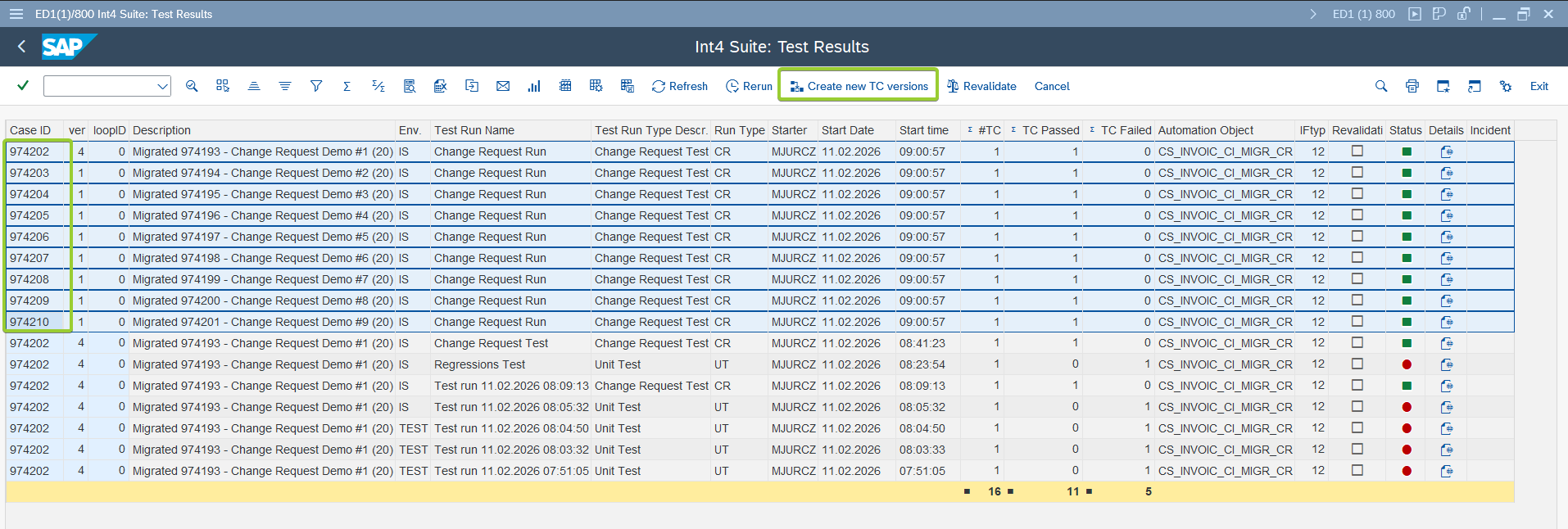
On new window select your Test Cases and click on “Create new TC versions“ button:
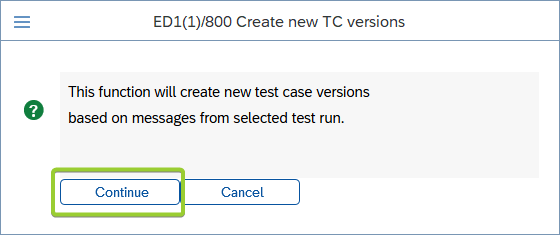
New window will appear, click on “Continue“:
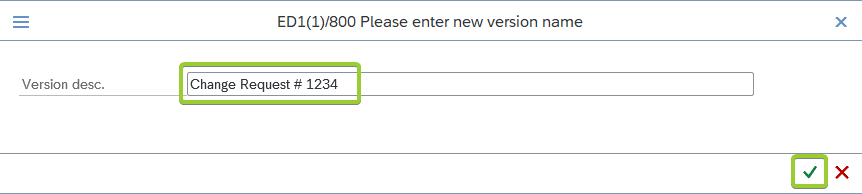
Another window appear, provide the name of Change Request and Confirm the action:
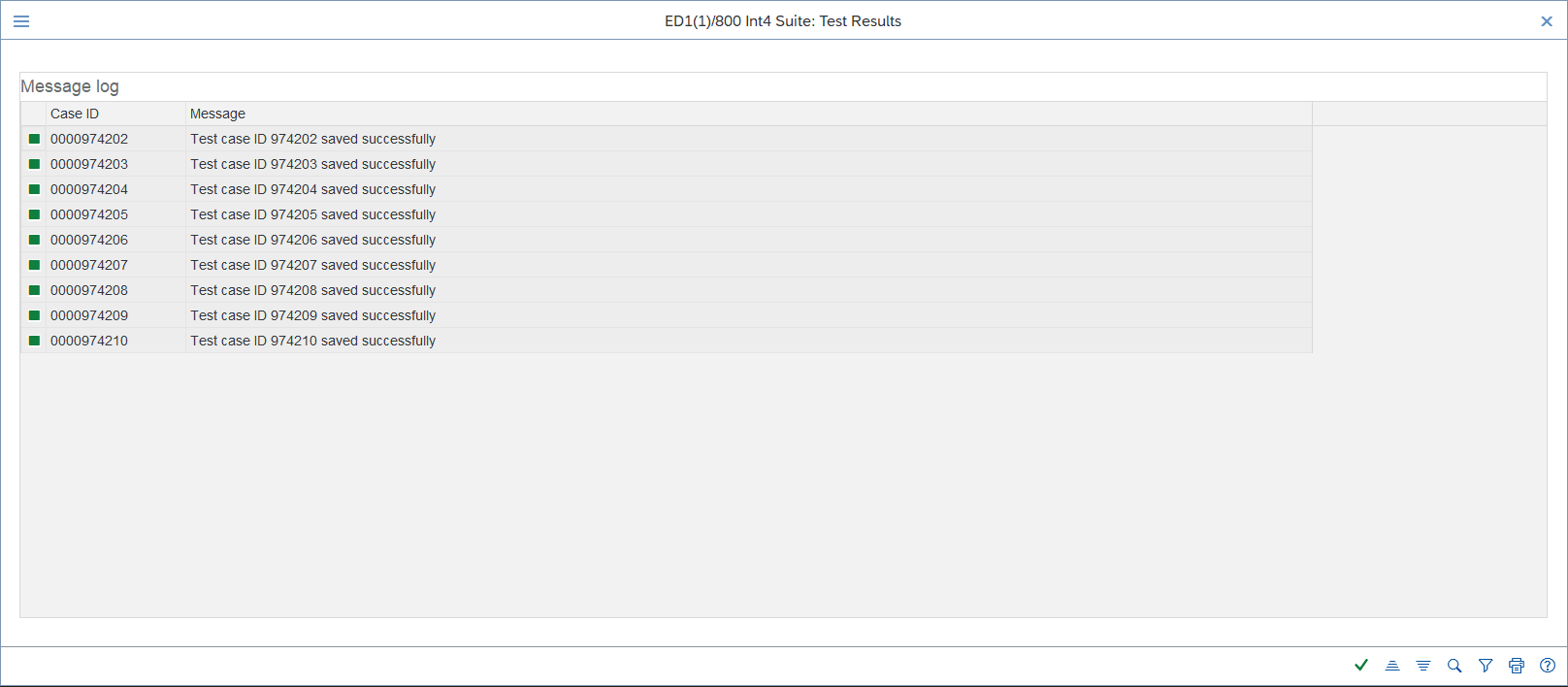
After some time - depending of number of Test Cases you should see the result of that update action:
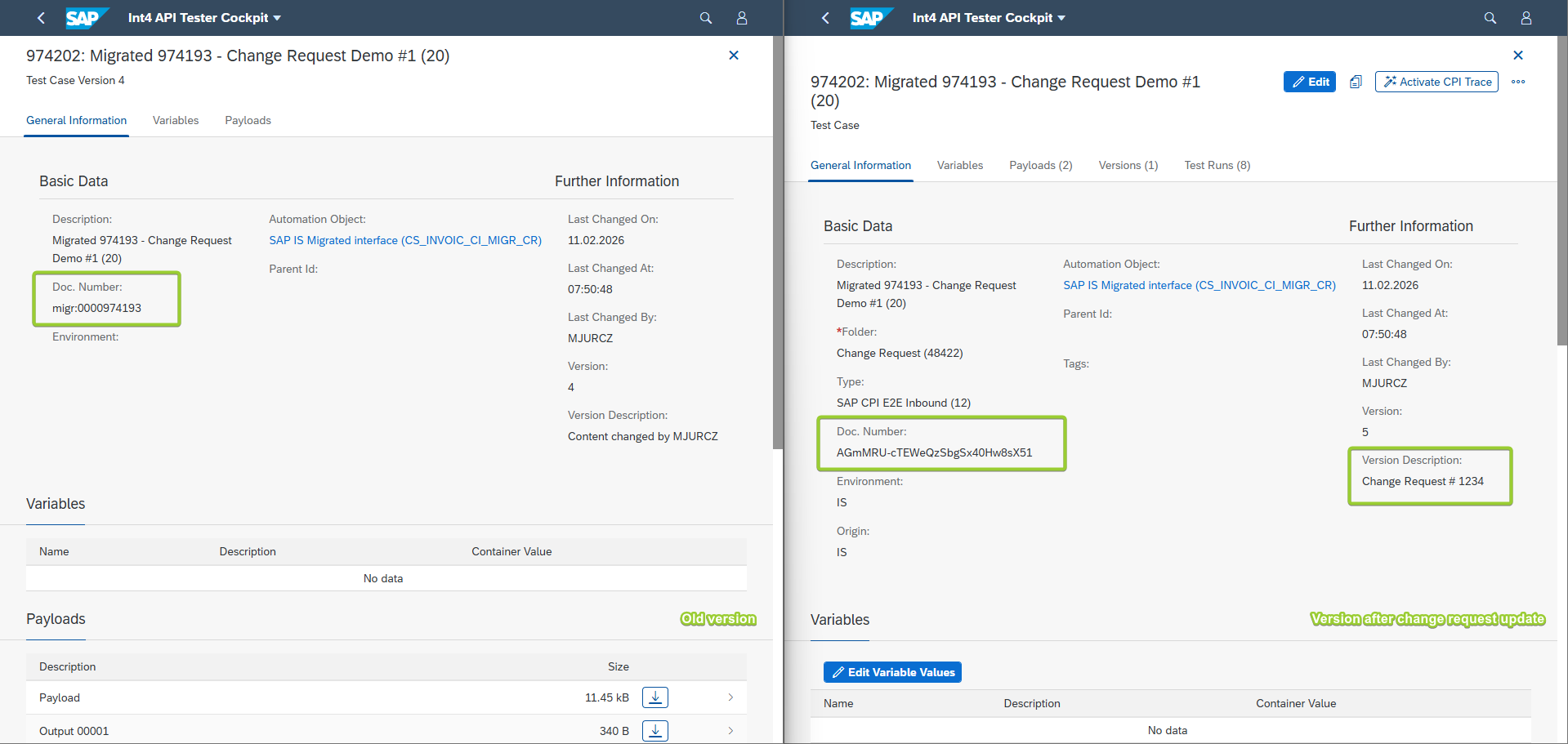
When versions of Test Cases will be shown side-by-side. You can see that Test Cases were updated:
Also the payloads:
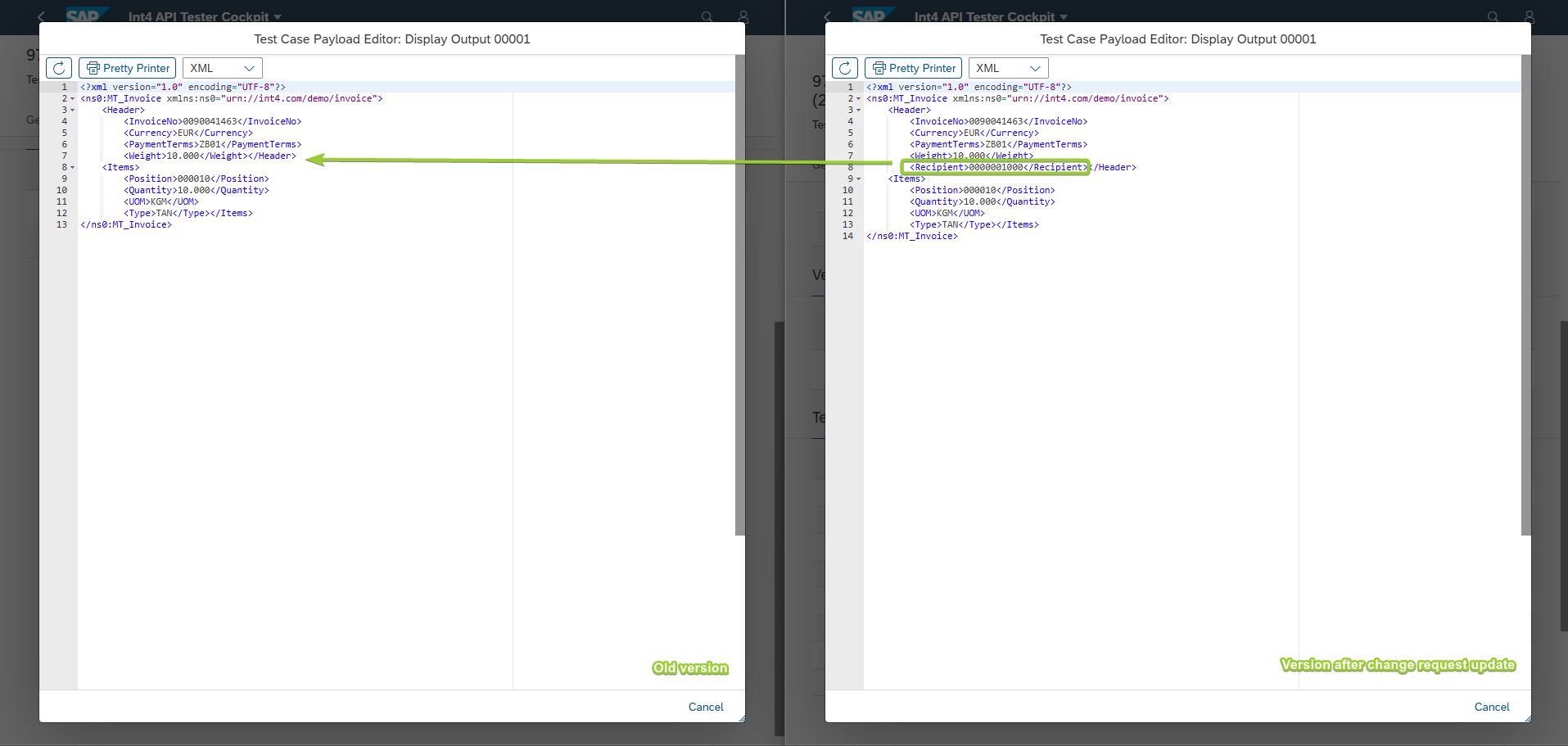
With this method you can reuse your Test Cases repository and still test your integrations even after change request were applied to lower tier systems.