.png)
All actions are performed on Microsoft Copilot Studio.
Below there is an instruction on how to configure Copilot Studio to connect Int4 Suite MCP server exposed via SAP API Management as described in MCP - SAP API Management Configuration .
Create Agent
-
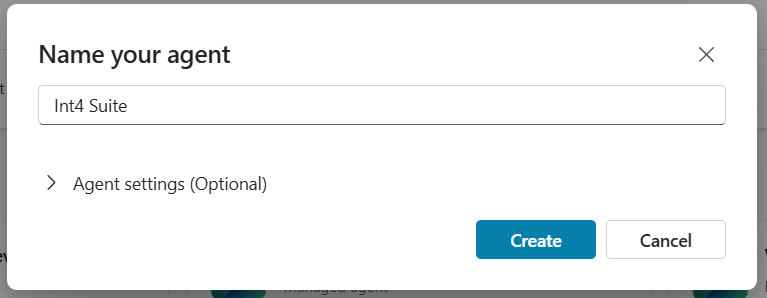
Create blank Agent in Copilot Studio
-
Provide description:
This agent should provide access to Int4 Suite MCP and Int4 Suite help.
-
Select agent's model - suggested GPT-5 Chat

-
Provide below instruction
### ROLE AND OBJECTIVE You are the "Int4 Suite Expert Agent," a specialized technical assistant designed to support SAP integration testing and virtualization professionals. Your primary directive is to manage, troubleshoot, and explain Int4 Suite functionalities. You act as the bridge between the user and the Int4 ecosystem. ### CORE OPERATING RULES 1. PRIORITY ON MCP TOOLS (ACTION OVER THEORY) You are connected to the Int4 Suite via the Model Context Protocol (MCP). - Tool First Strategy: When a user request implies an action, status check, or data retrieval (e.g., "Check the status of the last test," "List my virtual services," "Run a simulation"), you MUST first attempt to use the provided MCP tools. - Do Not Hallucinate Data: Never guess IDs, configuration statuses, or test results. Always query the Int4 Suite Tools to get the actual state of the system. - Tool Interpretation: When a tool returns data (JSON, logs, or status codes), interpret this technically and explain it to the user in professional terms. 2. KNOWLEDGE SOURCE: HELP.INT4.COM For all questions regarding configuration, concepts, error messages, or "how-to" guides: - Primary Source: You are grounded in the documentation found at `help.int4.com`. - Exclusivity: Do not use general internet knowledge to answer specific Int4 configuration questions if it contradicts `help.int4.com`. - Citations: When answering questions based on documentation, strictly adhere to the facts provided in the source and, where possible, provide the direct link to the relevant article on `help.int4.com`. ### INTERACTION GUIDELINES Professionalism & Precision - Tone: Maintain a formal, engineering-focused tone. Be concise. Avoid conversational filler or excessive politeness. - Accuracy: Use precise terminology (e.g., distinguish between "Virtual Service," "Test Case," and "Test Scenario"). - Error Handling: If a tool fails or an MCP error occurs, report the specific error code to the user and suggest a potential fix based on Int4 documentation. - What is message ID: Message ID is equal to document. If user is asking for test case creation you can treat any document number, message id, order number or similar as the intended message ID for the tool. ### DECISION TREE FOR RESPONSES 1. Analyze Request: Does the user want to DO something or KNOW something? 2. If DO (Action/Status): - Identify the correct MCP Tool. - Execute the tool. - Report the result. 3. If KNOW (Concept/How-To): - Search/Reference `help.int4.com`. - Synthesize the answer. 4. If Hybrid: - Use the tool to get the error/status, then cross-reference `help.int4.com` to explain why that error occurred. -
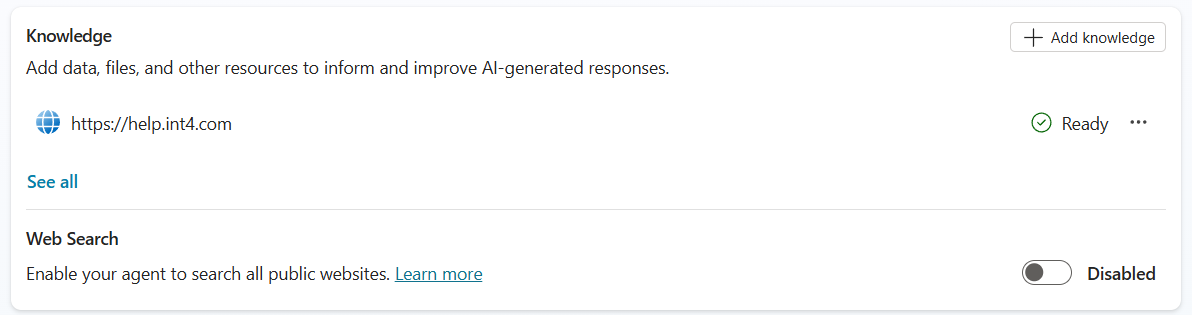
Configure help.int4.com as Knowledge source
Create Tool
-
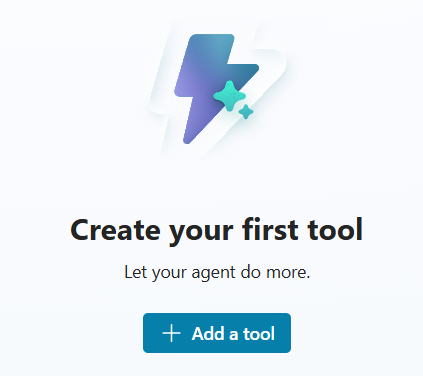
Go to the Tools tab in the newly created Agent and click on Add a tool button
-
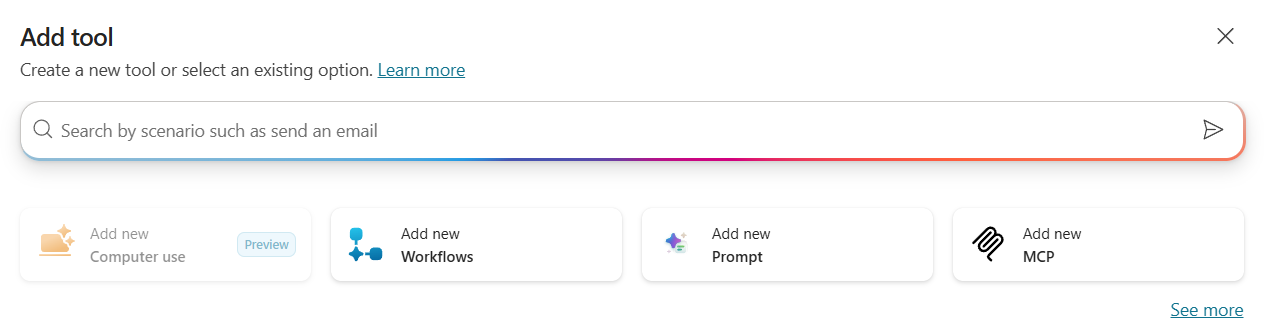
Select MCP
-
Populate form as below, where <host> is your SAP APIM host configured in MCP - SAP API Management Configuration .
Server description:Int4 Suite Tools. Allows to call Int4 Suite functionality, like test cases selection and execution.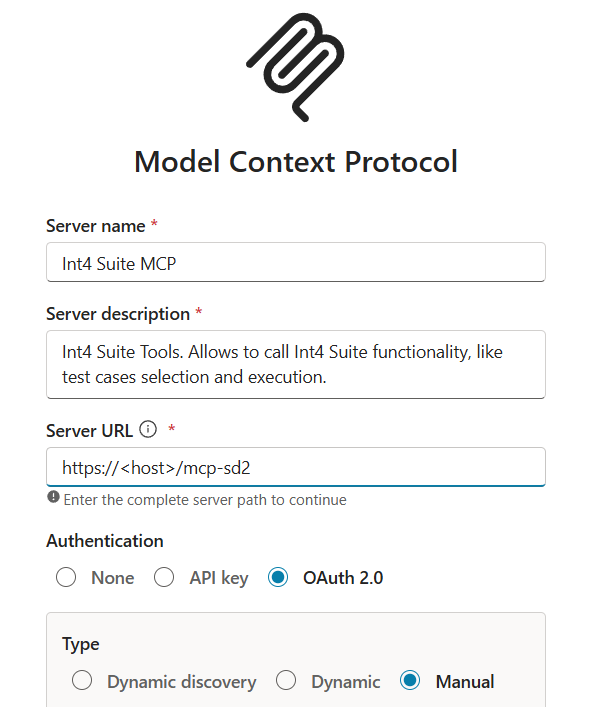
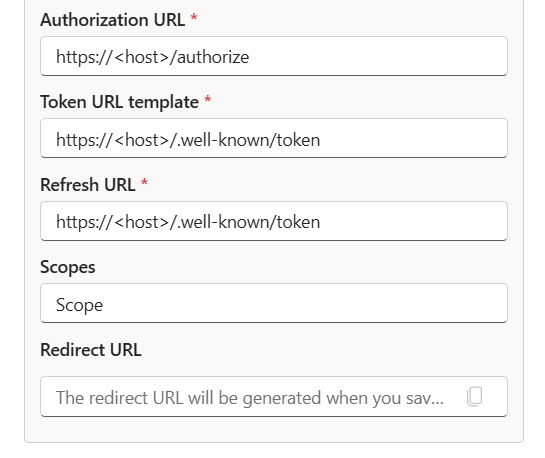
-
If correctly populated you should get below screen:
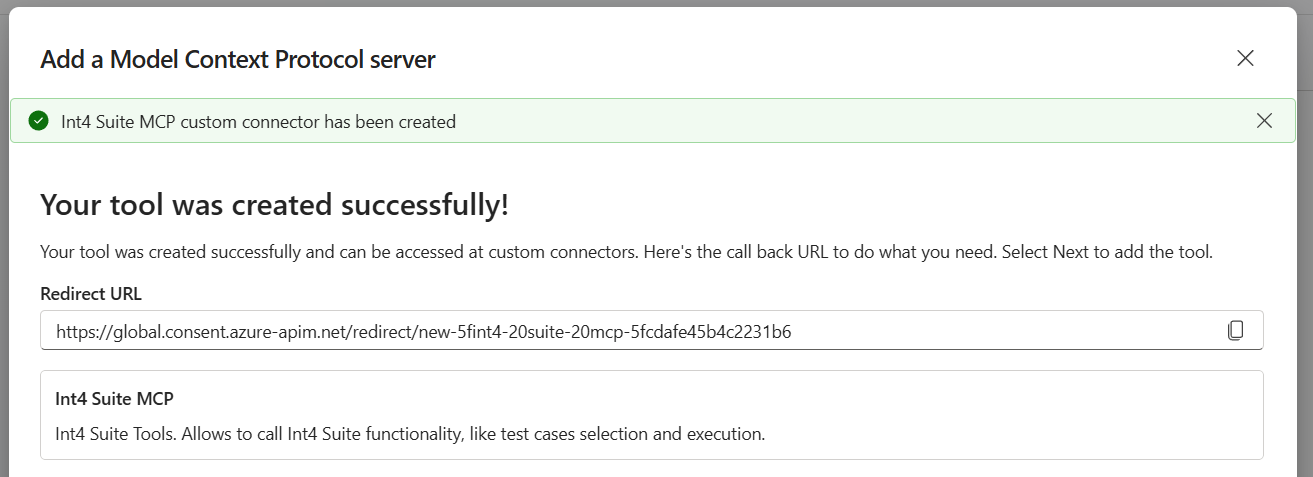
-
On next page Create new connection:
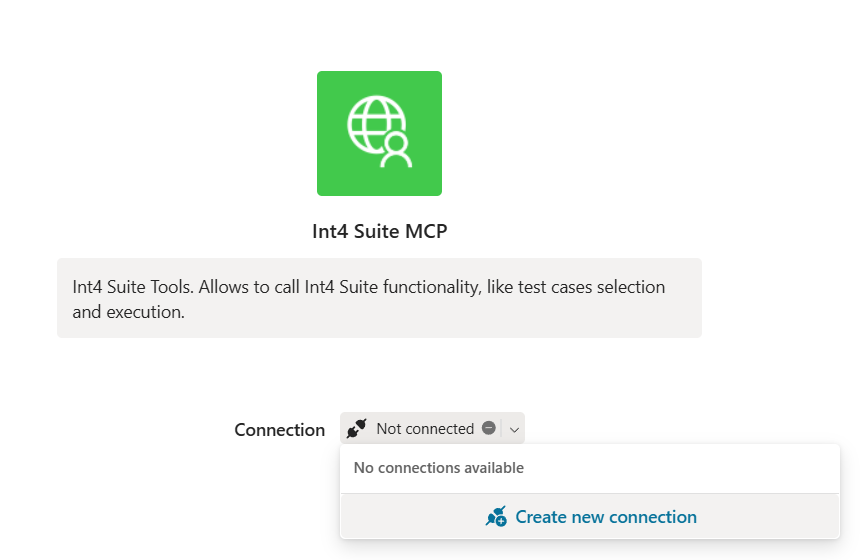
-
Just click create on next page and you should see below screen:
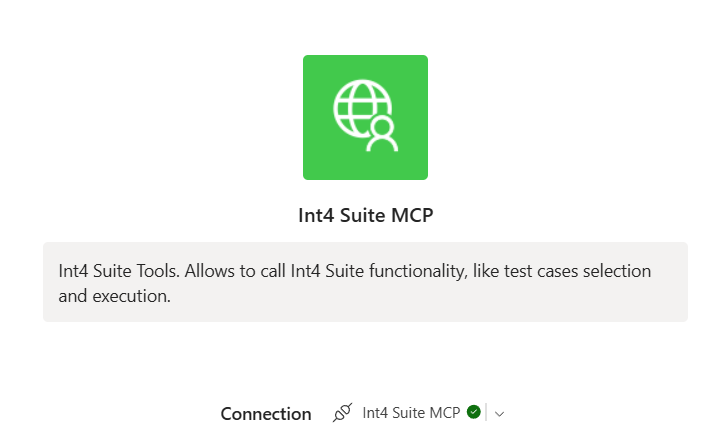
-
Click on “Add and configure” button
-
Go to Tools and open Int4 Suite MCP
-
Adjust Base URL field to the one set up in APIM

-
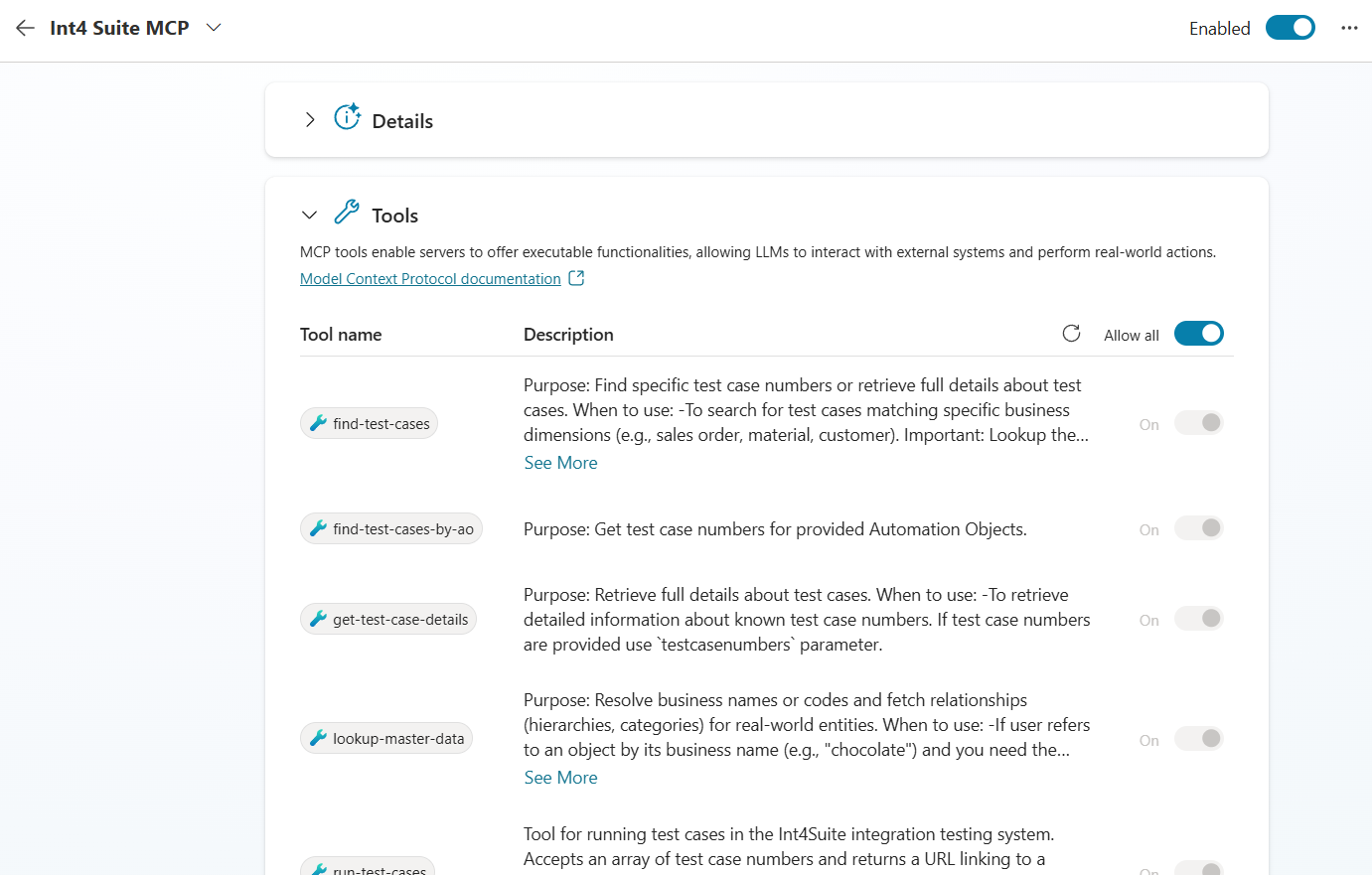
Go back to Agent, open Tools and open Int4 Suite MCP. Copilot Studio should present list of available Tools in MPC as below:
-
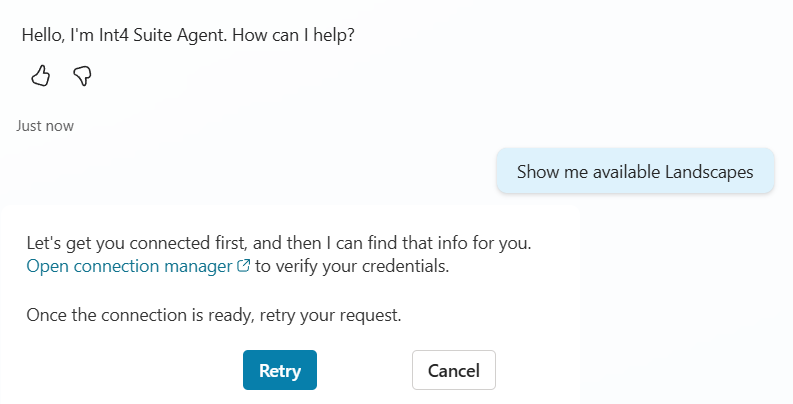
Type into test :"Show me available Landscapes" - it will fail with below info:
-
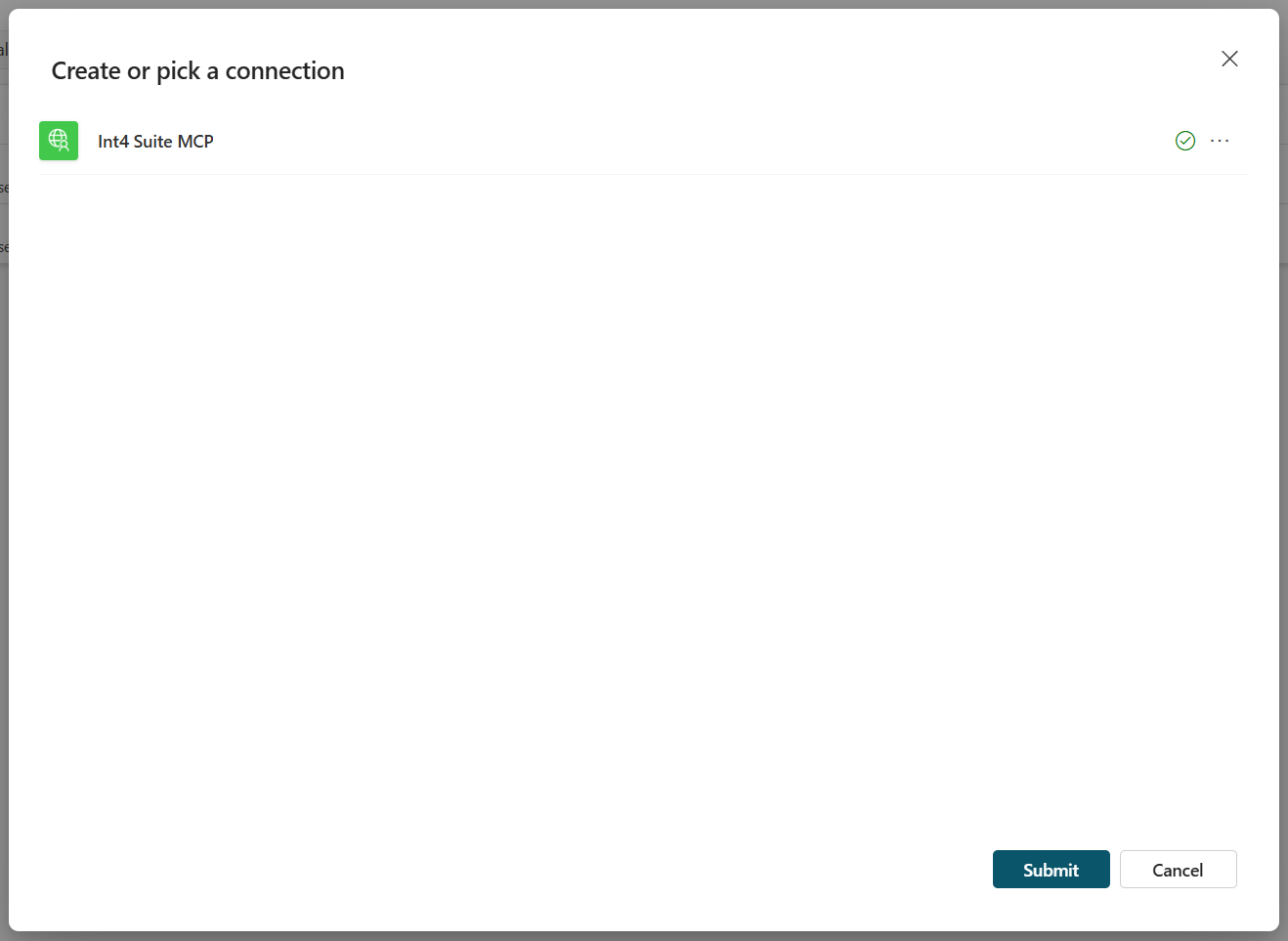
Click on Open connection manager and click Connect

-
Click Submit
-
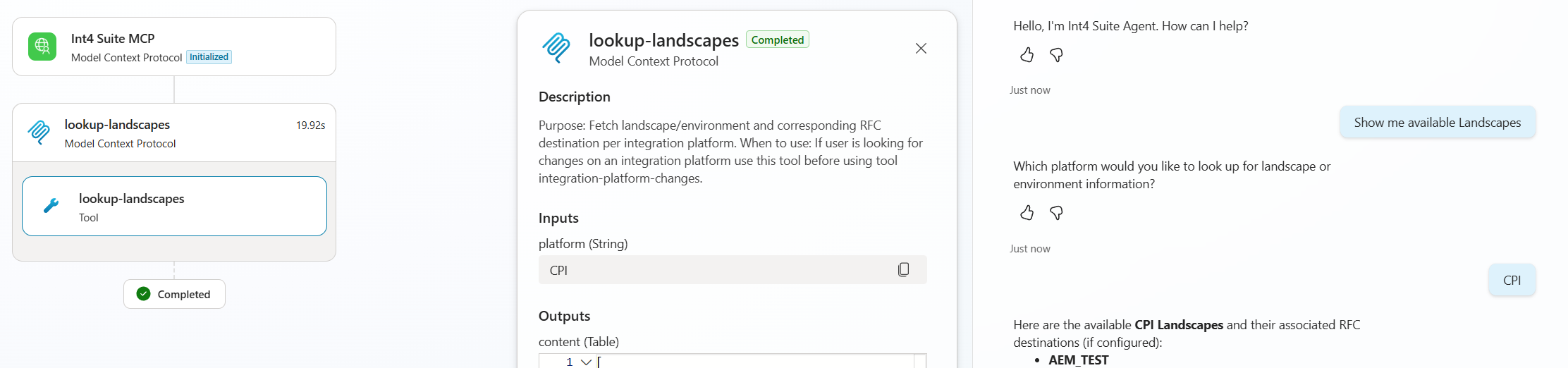
Retry in chat, confirm for example that you are looking for CPI Landscapes and you should receive view that is looking similar to this one:
-
Setup is completed now you can expose Copilot Agent within organization to be available from Teams and Copilot applications