.png)
How to Validate a Sales Order Using Database Validation Rules
Hands-on tutorial - Part 3 of 5: SAP Backend Validation Series
This guide shows you the second validation approach: after simulating a Purchase Order message, automatically verify the resulting Sales Order in the SAP backend using a Database Validation Rule Set. The same
POvariable created in Part 2 is reused to identify the correct Sales Order each time.
Overview
In Part 1 you built an Automation Object that simulates an incoming Purchase Order. In Part 2 you added a variable that gives every simulated message a unique Purchase Order number.
In this guide you will attach a Database Validation Rule Set to the same Automation Object. Each test execution will:
-
Simulate the Purchase Order message
-
Read the resulting Sales Order from the SAP database using the unique
POvalue -
Compare the new Sales Order against the reference Sales Order stored with the test case
At the end of this guide you will have:
-
A Database Validation Rule Set (
generic_SO) attached to the Automation Object -
Confirmation that the simulated message produces a correct Sales Order in the backend
-
A side-by-side comparison view between the reference and the generated Sales Order
Step-by-step instructions
1. Review the existing Automation Object and validation goal
The Automation Object already simulates an incoming Purchase Order message, and it replaces the Purchase Order number with a unique PO value on every execution.
The next goal is to add a validation block that automatically checks the Sales Order created from that message in the SAP backend.
2. Confirm the Database Validation Rule Set for Sales Orders
-
Open Database Validation Rulesets and locate the Sales Order rule set.
-
The rule set used in this example is
generic_SO. -
Review the rule set details to see which table and fields are used to identify the target Sales Order:
-
Selects from
VBAP/ Sales Order-related tables -
Filters by the
BSTNKfield (Customer Purchase Order Number)
-
-
The filter uses a variable named
POto match the Purchase Order value.
3. Make sure the Automation Object uses the same variable name
The variable name in the Automation Object must match the variable name used in the Database Validation Rule Set:
-
In this case, the existing
POvariable from Part 2 can be reused. -
Matching variable names ensures the validation rule can correctly find the Sales Order created from the simulated message.
⚠️ Important: This is the most common configuration mistake. If your variable is called
PurchaseOrderbut the rule set filters onPO, no record will be found and the validation will fail. Always align names.
4. Attach the Database Validation Rule Set to the Automation Object
-
Go back to the Automation Object and click Edit.
-
Open the Database Validations section.
-
Expand the available options and select the existing rule set
e.g. generic_SO. -
Save the Automation Object.
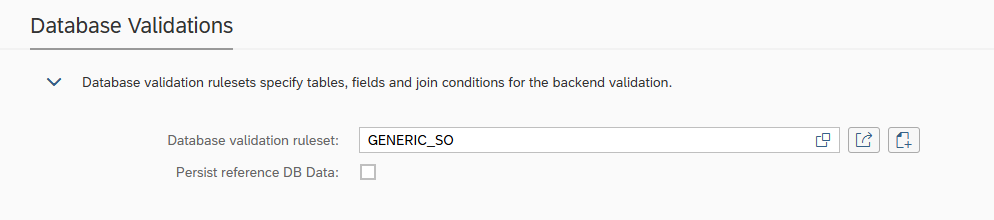
5. Understand how database data is fetched during execution
There are two ways Database Validation data can be handled:
|
Option |
Behavior |
When to use |
|---|---|---|
|
Persist reference DB data |
Saves the database details when a new test case is created |
When the reference Sales Order is stable and you want to lock it down |
|
Fetch at execution time |
Retrieves the data live when the test case runs |
When the reference comes from a separate "golden" environment that may be updated |
In this example, the data is fetched directly during test execution.
6. Run the same test case with validation enabled
-
Execute the same test case you used in Part 2.
-
Select the test environment e.g.
QA- the target environment for message injection. -
Click OK to start the run.
Int4 Suite now performs both actions automatically:
-
Simulates the Purchase Order message
-
Validates the resulting Sales Order against the reference data
7. Inspect the execution results and compare documents
-
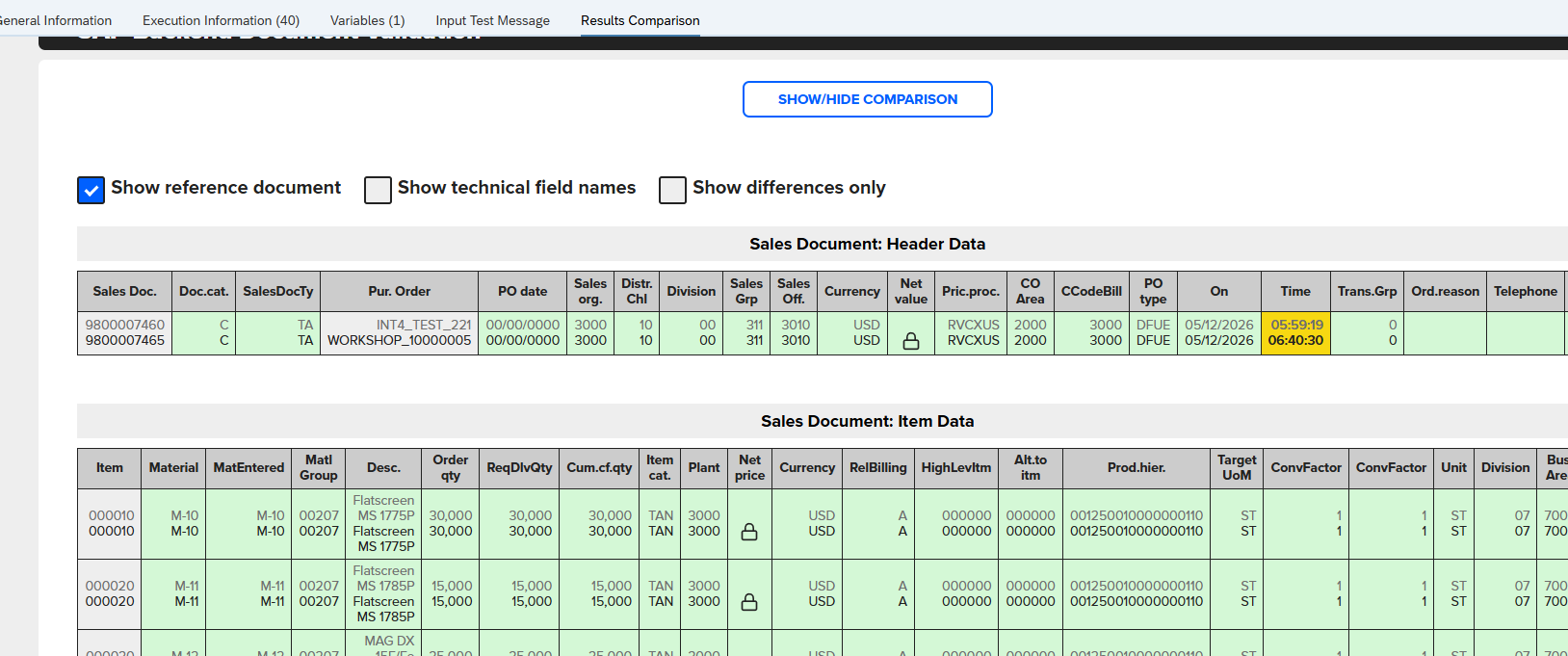
Open the execution details to review the generated variable and the resulting Sales Order.
-
The variable should show the next number from the configured number range (e.g.
workshop_10002). -
Click Show Reference Documents to compare the records:
-
Upper document: the reference Sales Order from production
-
Lower document: the Sales Order created by the simulated message in QA
-
Troubleshooting
|
Issue |
Likely cause |
Resolution |
|---|---|---|
|
"Record not found" in validation |
Variable name in Automation Object does not match the rule set |
Align variable names (see step 3) |
|
Wrong Sales Order returned |
Multiple Sales Orders share the same |
Make the |
|
Validation runs but shows differences |
Expected dynamic fields (dates, document numbers, timestamps) or real issues |
Troubleshoot with the functional team |
What's next
Video reference
🎥 Full walkthrough on Loom: https://loom.com/share/e4f9ffe4eb5048a6b62a2f04641140af