.png)
How to Create an Automation Object and Test Cases for a Purchase Order Interface
Hands-on tutorial - Part 1 of 5: SAP Backend Validation Series
This guide walks you through creating your first end-to-end simulation scenario in Int4 Suite. You will build an Automation Object pointing to an SAP PO interface, then generate test cases by pulling real production messages directly from middleware
Overview
In this scenario, an external system sends a Purchase Order to SAP PO. The middleware converts the Purchase Order XML into IDoc XML, and the SAP backend posts a Sales Order based on that IDoc.
This first guide focuses only on the Int4 Suite simulation capabilities - you will collect input messages directly from SAP PO using the interface PurchaseOrder_Outand turn them into reusable test cases.
At the end of this guide you will have:
-
A configured Automation Object linked to your SAP PO interface
-
Test cases populated with real input payloads taken from production
-
A working baseline that the next three guides in this series will extend
Step-by-step instructions
The scenario simulates an external system sending a Purchase Order. The Purchase Order XML is processed in middleware, converted into IDoc XML and ultimately results in a Sales Order being posted.
This walkthrough focuses only on the Int4 Suite simulation capabilities.
1. Review the interface before creating the Automation Object
Before creating anything in Int4 Suite, first inspect the target interface in SAP PO:
-
The interface uses standard logging and staging, so the default Int4 Suite parameters can be used.
💡 Tip: If the interface uses adapter modules that change the message content and you want to fetch it - add a custom message caption in the Message version before processing
2. Create Automation Object
-
Open the Fiori Launchpad and click the Automation Object tile.
-
Click Create.
-
Enter a descriptive Automation Object name.
-
Set the Automation Object type to: PI GUID E2E Inbound
-
Add a description.
-
Click Create to save.
3. Import interface details from SAP PO
Inside the new Automation Object, use the Import from PI function to pull interface metadata directly from SAP PO:
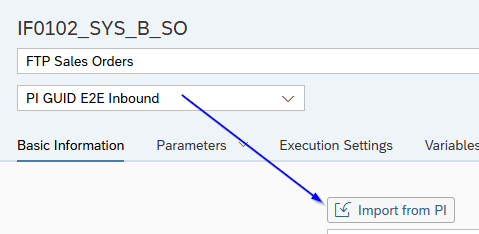
-
Select the source environment - for example, Production PO.
-
Choose the relevant interface name and interface namespace.
-
Click Go and wait for Int4 Suite to fetch the available interface data.
-
If multiple sender systems reuse the same interface, select the specific sender/interface instance you want to use.
-
Click Save.
⚠️ Note: It is common for one interface to be reused by several senders.
4. Create test cases for the Automation Object
-
Go to Int4 APITester Cockpit.
-
Open (or create) the folder where you want to store the test cases.
-
Click Edit, then add a new item using the + button.
-
Choose Create test cases.
-
Provide a description.
-
Ensure the test case type matches the Automation Object type.
-
Select the Automation Object you created in step 3.
-
Set the environment. If the folder environment is empty, choose the origin environment - for example, Production PO
-
Use the search help in the Document Number field.

-
Click Search to fetch available messages from SAP PO.
-
Review the list of messages Int4 Suite retrieved from the production environment.
-
Select one or more messages.
-
Click OK, then Save.
Int4 Suite will now download the input messages needed for the simulation.
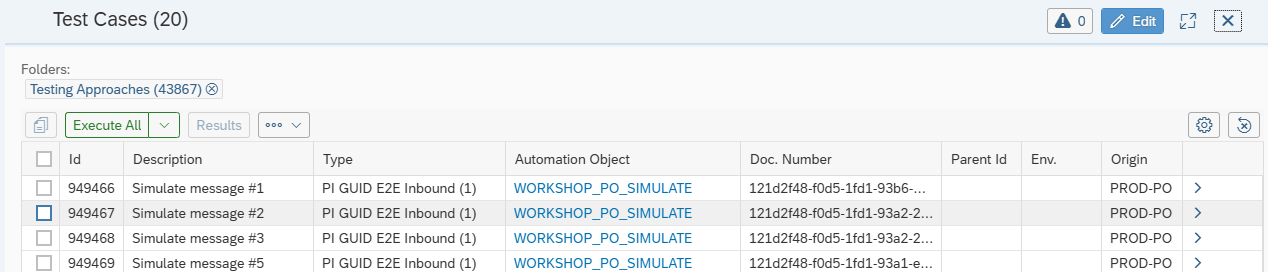
5. Verify the saved input payload
-
Open the test case details.

-
Navigate to Payloads.
-
Click Input Message.
-
Confirm that the input message was saved correctly and contains for example the expected Purchase Order XML.

8. Understand when to set a custom message version
In this example, no extra parameter was needed for message version before processing because the standard MS version was used.
If SAP PO uses a different message version - for example, one produced by a message logger or an adapter module such as EDI - you must enter that version in the Automation Object:
-
Open the Automation Object
-
Set Message version before processing to the appropriate value (e.g.
EDI)
Int4 Suite uses this value to determine which version of the message to download into the test case.
Troubleshooting
|
Issue |
Likely cause |
Resolution |
|---|---|---|
|
No messages returned in the search |
Wrong environment selected, or no recent traffic on the interface |
Verify the environment in the search popup and the interface name/namespace in the Automation Object |
|
Payload is empty after save |
Wrong message version configured |
Check whether the interface uses a custom message version |
|
Multiple sender systems appear |
Interface is shared across senders |
Pick the specific sender/interface instance you want to test |
What's next
This guide established the foundation. Continue with the rest of the series:
-
Part 2: Create a Dynamic Variable to Generate Unique Purchase Order Numbers
-
Part 4: Validate the IDoc Output and Handle Expected Differences
Video reference
🎥 Full walkthrough on Loom: https://loom.com/share/5db000c422074732bf68a54a68a432f7