.png)
Overview
This guide walks you through maintain settings to allow validate outputs in SAP Integration Suite iFlows. You will build Automation Object from scratch for iFlow, select blocks for input and output messages. This is the example iFlow that will be tested:
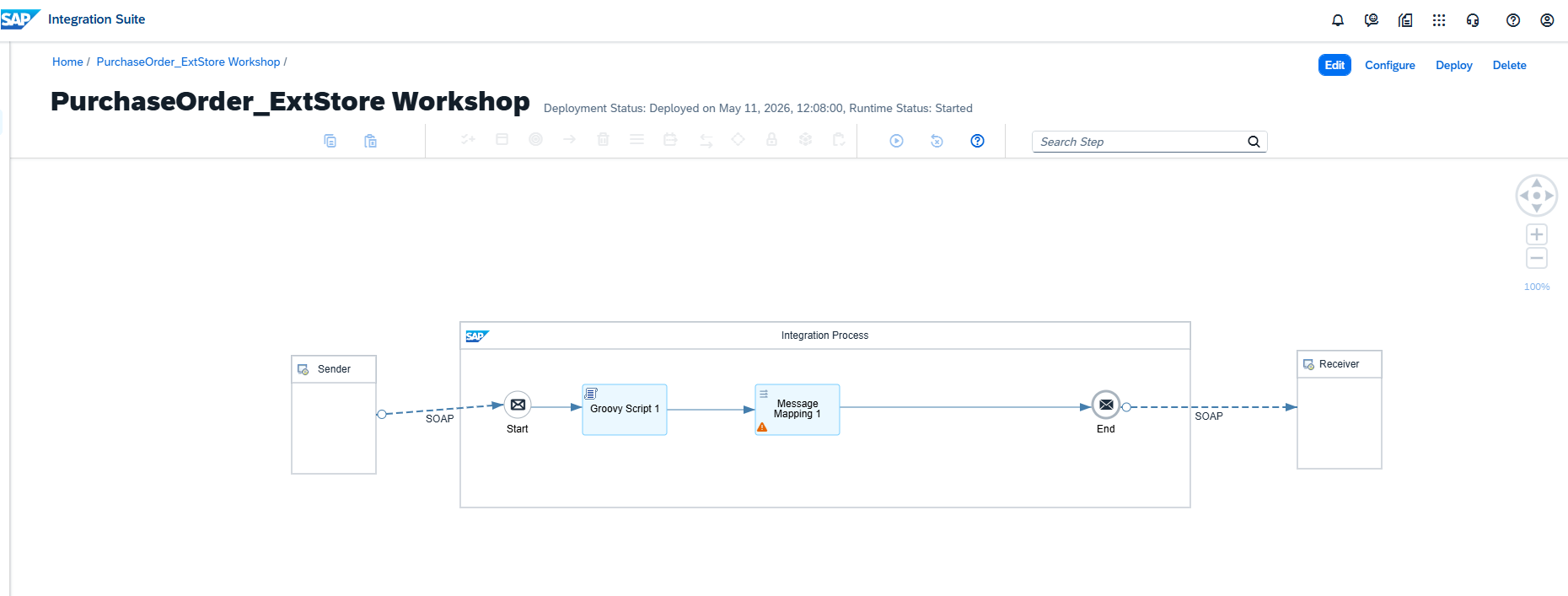
-
Create Automation Object.
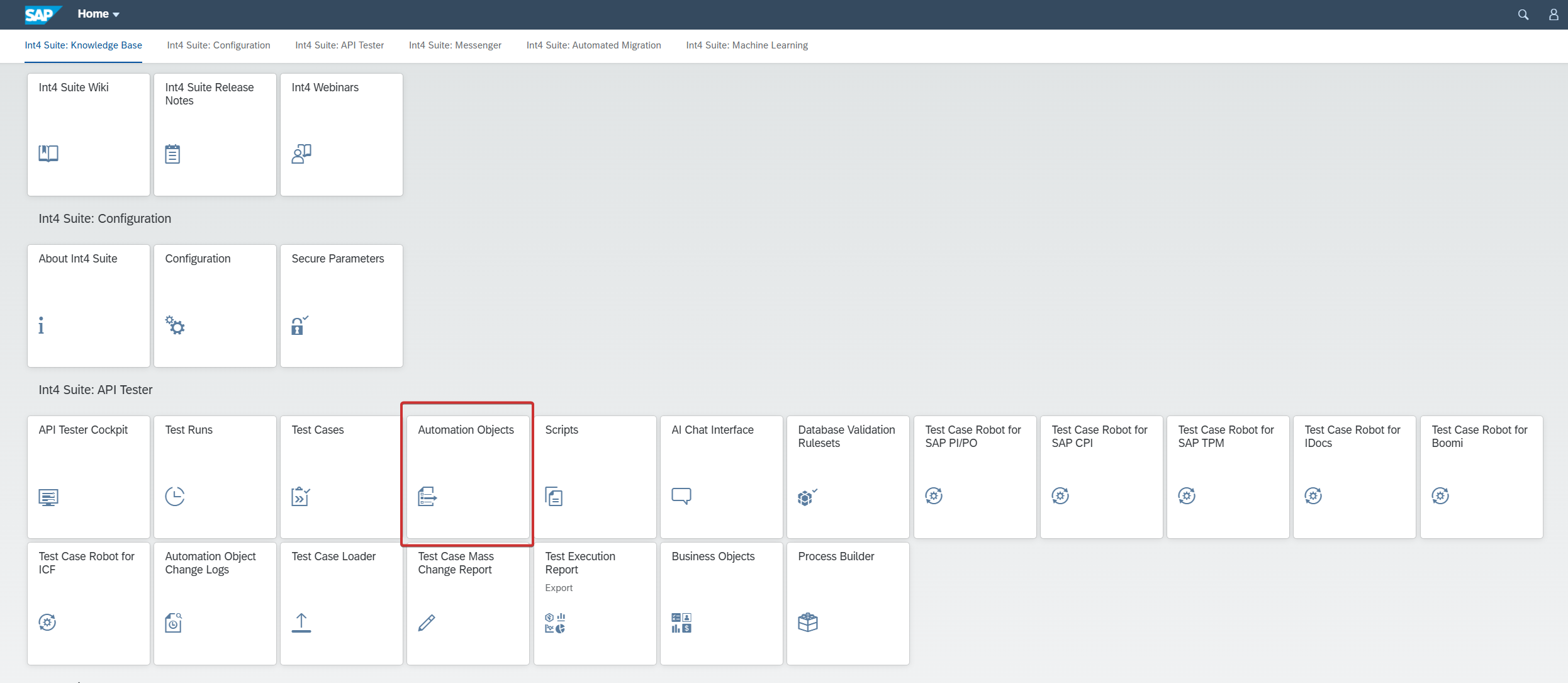
Navigate to “Automation object“ tile:
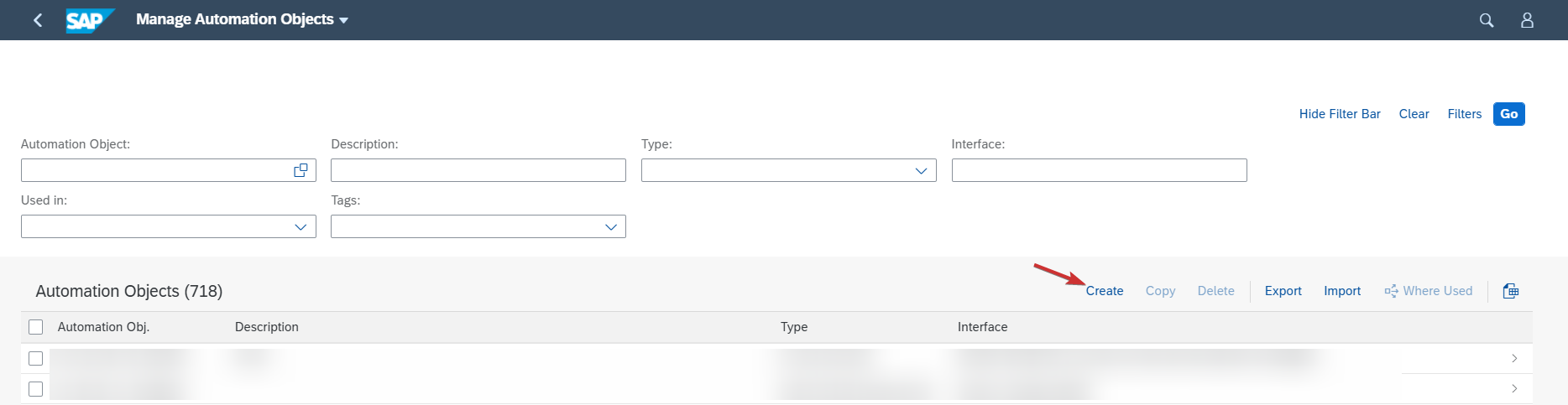
Click on “Create” button:
On next window, fill out fields for Automation Object ID, Type and optionally description:
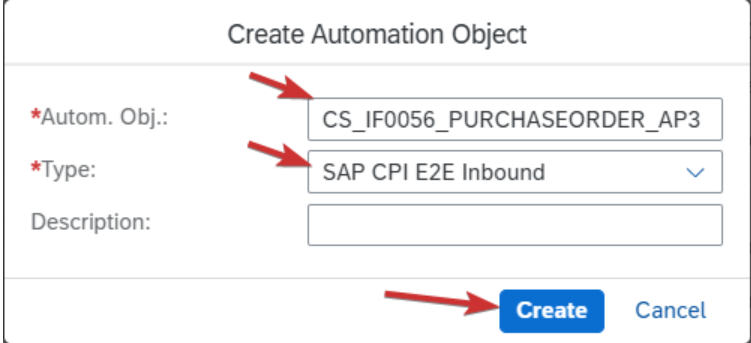
Click on “Create“ to create Automation Object.
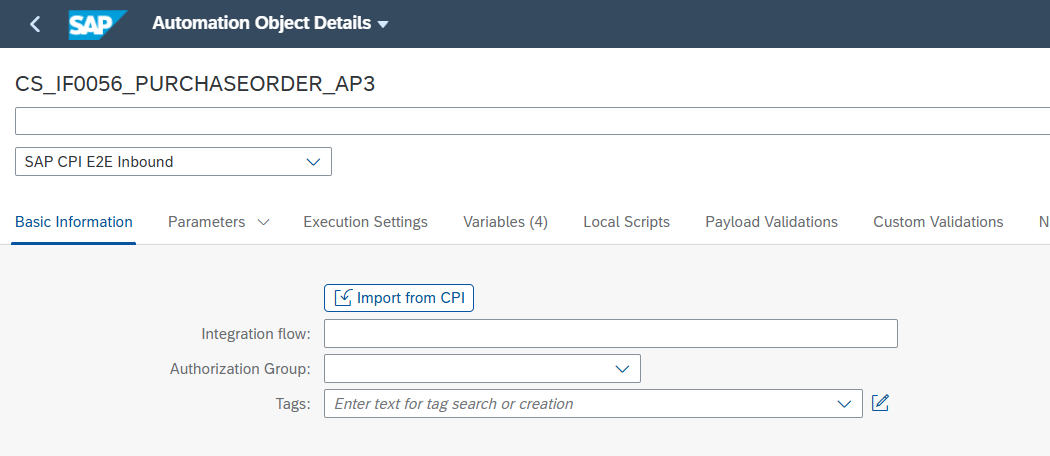
Select Integration Flow from ”Import from CPI” button or fill out the name of iFlow.
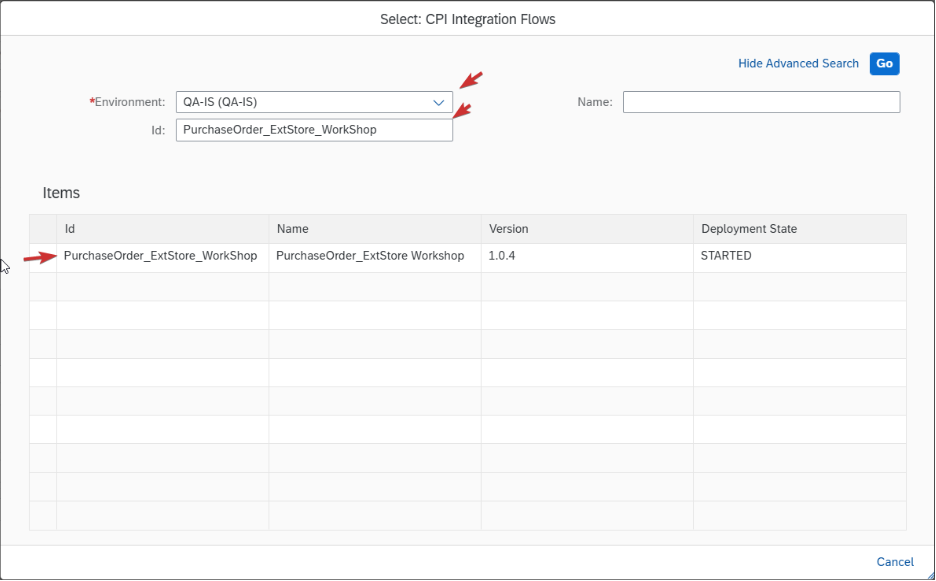
Can use selection criteria as Name or ID of iFlow. Environment is mandatory parameter that needs to be provided in order to use this feature.
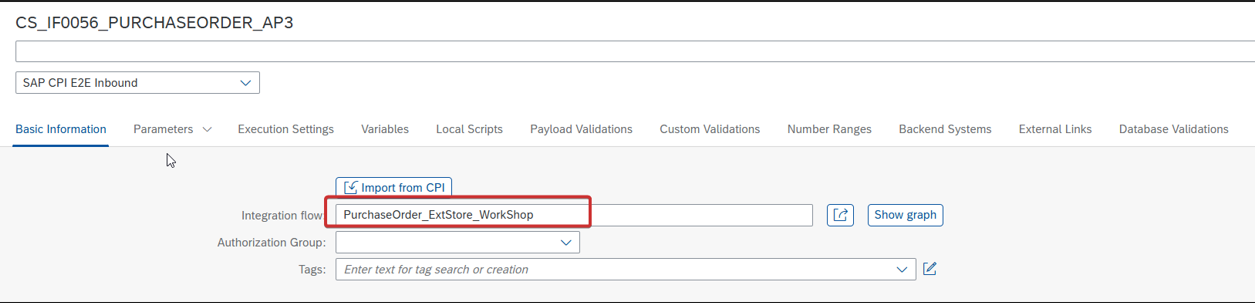
Select blocks Block in iFlow to get input payload and Block in iFlow to get output payload. You can use “Show graph“ button to select them from graph:
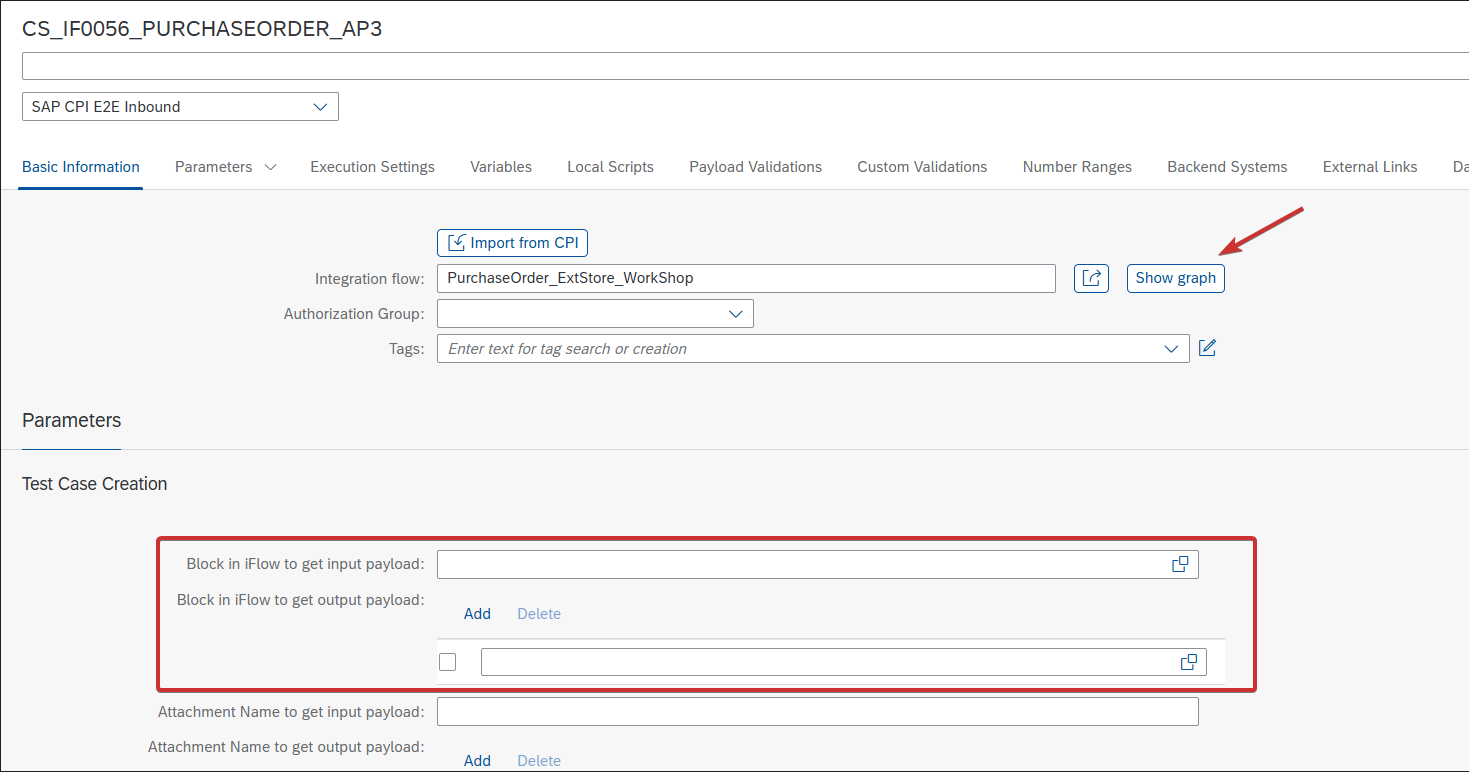
Make sure that environment is selected:
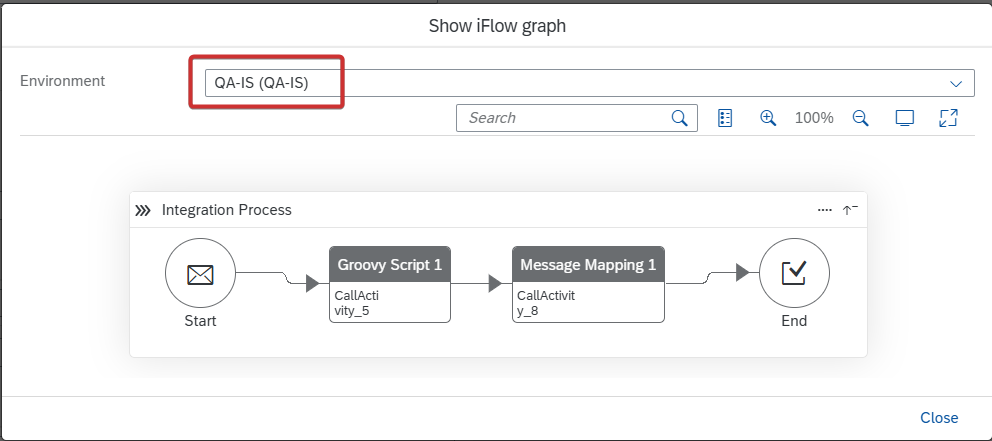
On the graph for Block in iFlow to get input payload:
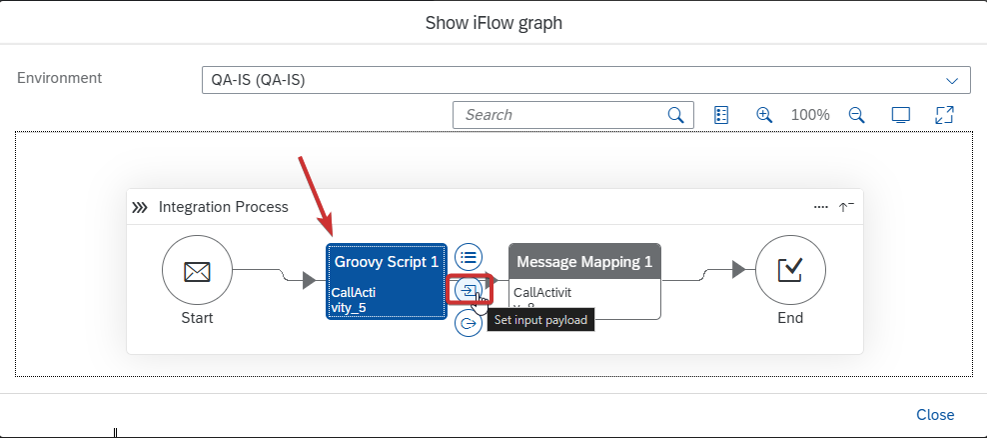
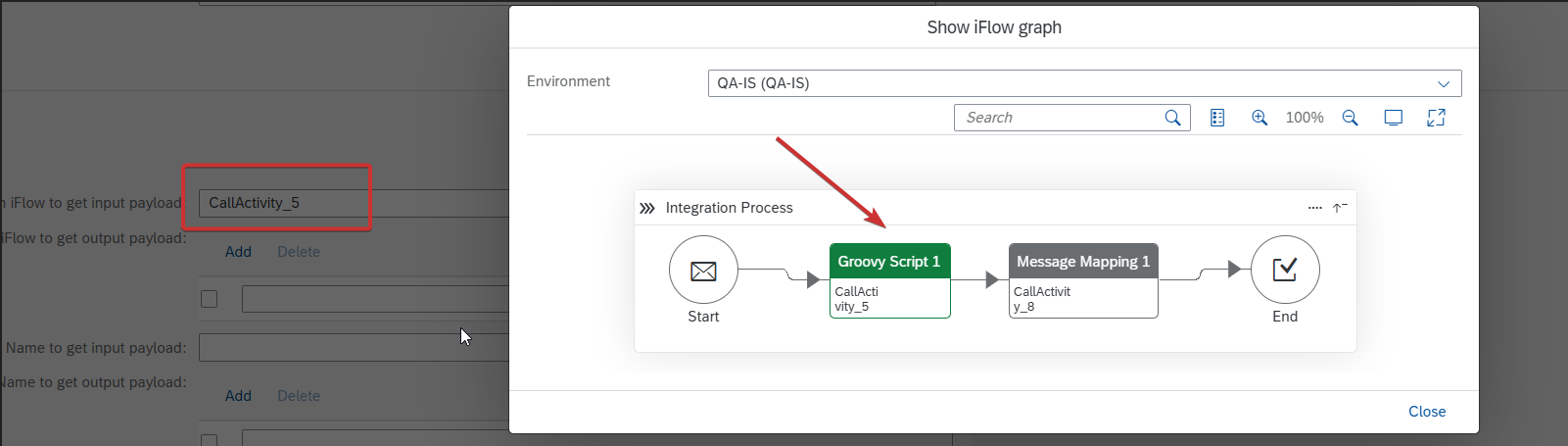
Click on block CallActivity_5, and click on Set input payload. Block should change color and value appear:
Choose CallActivity_8 block and select Set output payload:
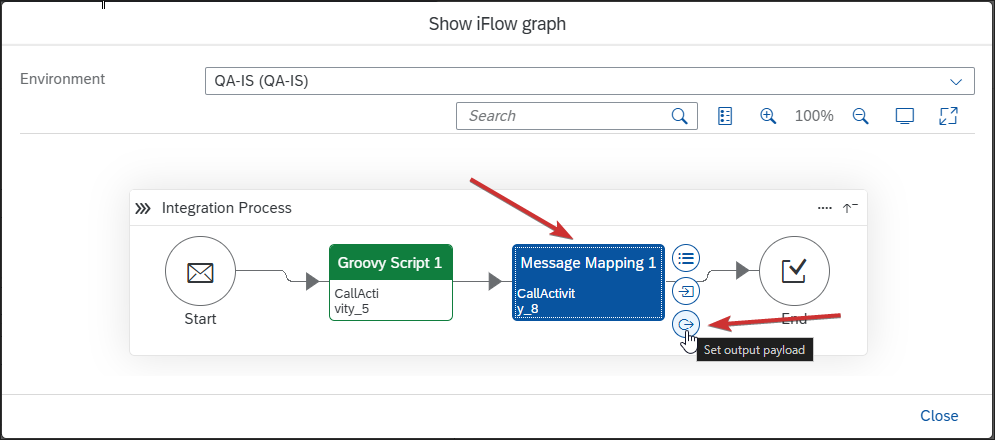
After that block should change color to green and value appears.
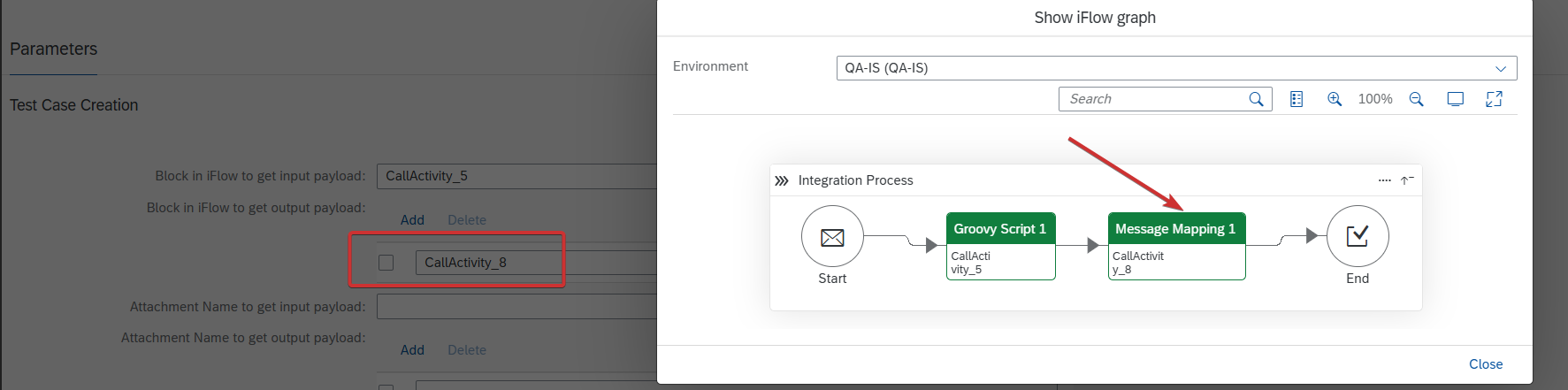
You can add multiple outputs blocks.
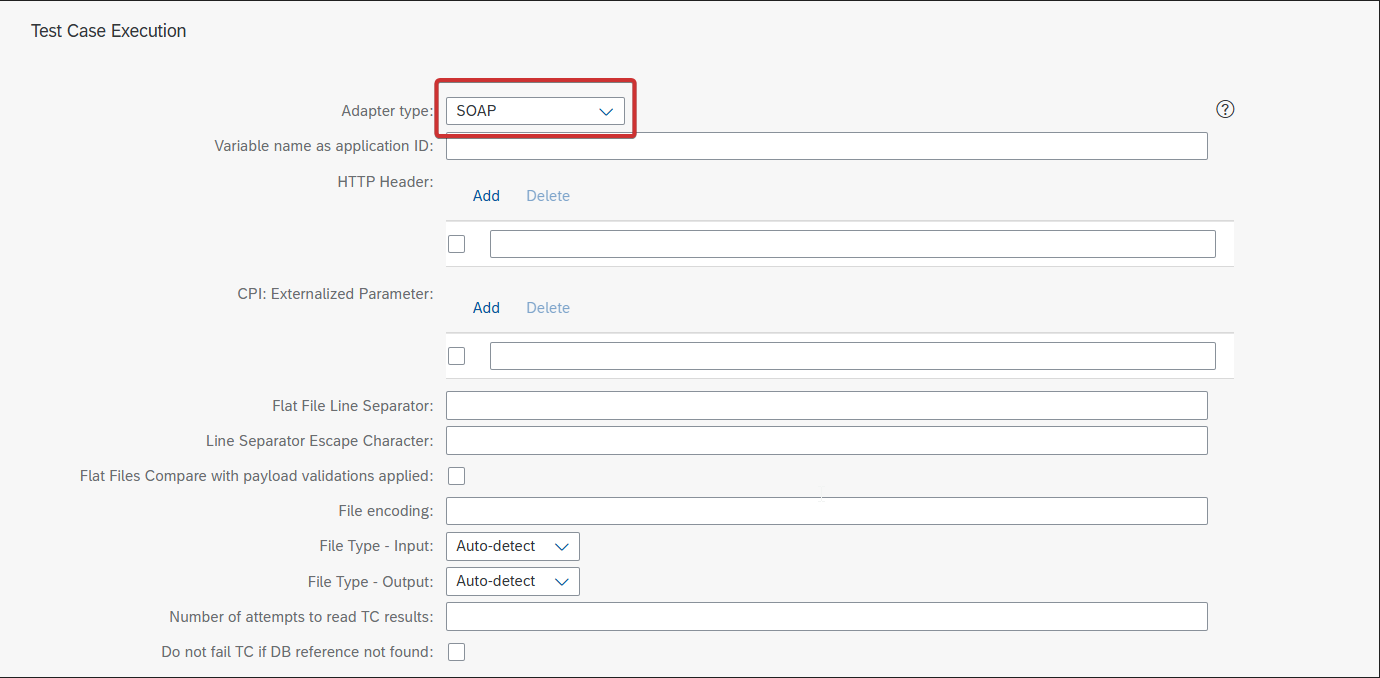
As next step you need to select Adapter type, in this example SOAP.
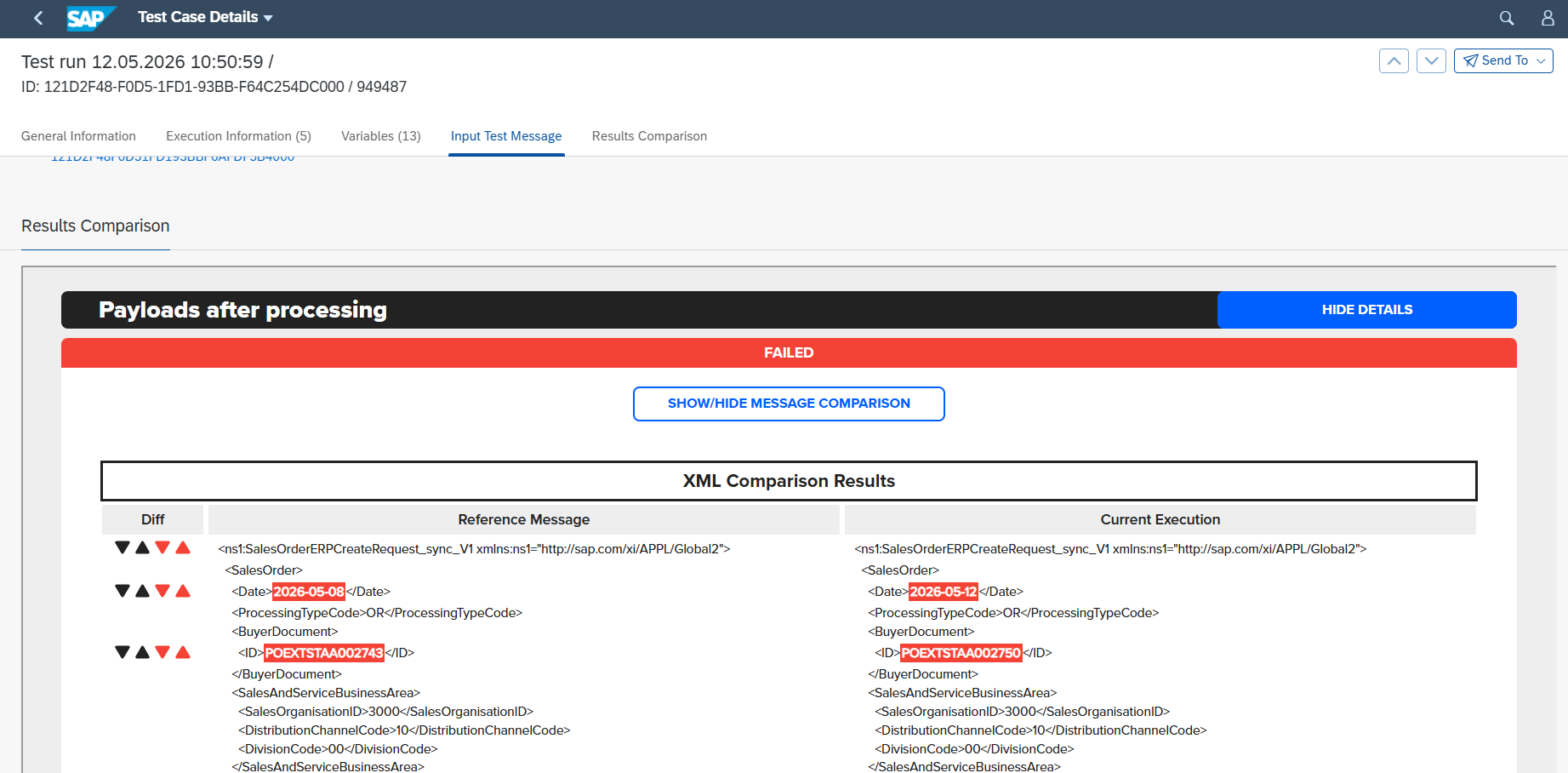
When those settings are applied, during Test Case execution you will see output message comparison:
Useful Links
https://help.int4.com/int4-suite-knowledge-center-library/3.15/sap-cpi-e2e-inbound
https://help.int4.com/int4-suite-knowledge-center-library/3.15/payload-validations