.png)
How to Create a Dynamic Variable for Unique Purchase Order Numbers
Hands-on tutorial - Part 2 of 5: SAP Backend Validation Series
This guide shows you how to make each simulated message uniquely identifiable by adding a variable and a number range to an existing Automation Object. After this setup, every test execution will generate a unique Purchase Order number, which makes messages easy to trace in middleware and the SAP backend.
Overview
When you simulate the same message, for example Purchase Order message many times, every run produces an identical payload - making it hard to trace individual executions in the middleware monitor or the SAP backend or even prevents it from posting in the backend.
The solution is to introduce a variable that replaces a chosen field in the payload with a value generated from an Int4 Suite number range. This makes each simulated message unique while keeping the rest of the test data stable.
At the end of this guide you will have:
-
A
POvariable on your Automation Object that replaces the Purchase Order number at runtime -
A number range that generates unique values
-
A working test execution that produces a different Purchase Order number on every run
More info about variables: https://help.int4.com/int4-suite-knowledge-center-library/3.15/variables-variable-processing
Step-by-step instructions
1. Open the Automation Object for the test case
-
Navigate to the Automation Object assigned to your test case.
-
Open it in edit mode so you can configure variables and number ranges.
-
Expand the Variables section.
-
Click Create to add a new variable.
-
Fill in:
-
Variable name:
PO -
Description:
PurchaseOrder
-
-
Set the action type to Read and Replace.
-
Choose the appropriate scope for the variable.
💡 Tip: Use a short, meaningful variable name. The same name will be reused later to wire the variable into a database validation rule set - consistency saves time.

2. Configure the variable to replace the payload value
-
Click the pencil / edit icon next to the variable.
-
In the Read area, choose Read variable from saved message
-
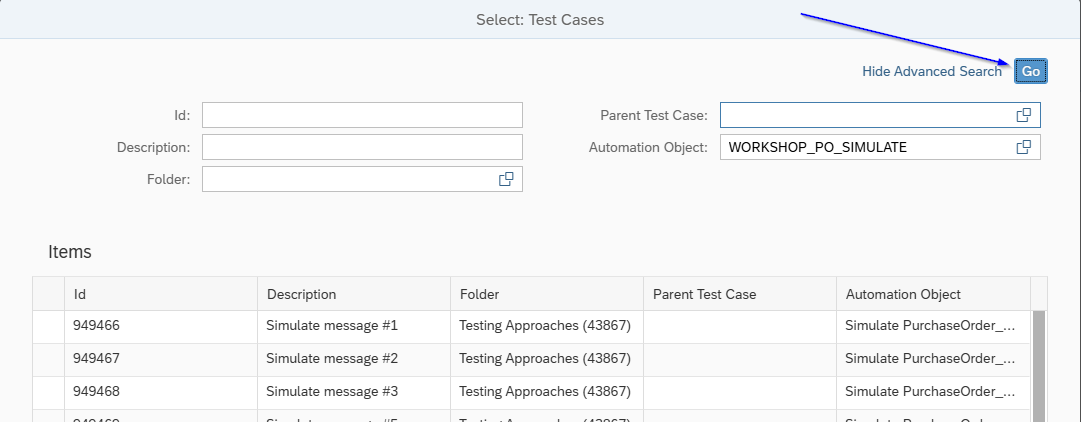
In the Expression area, open the search help and choose Import payload from test case.

-
Click Go - the test cases assigned to the Automation Object will be displayed.
-
Select the relevant test case.
-
In the Select Payload section, chosse Input Message and then go to Xpath tab and choose the field you want to change before the message is sent to middleware.
-
In this example, the target field is under
attributes → purchaseOrderNumber.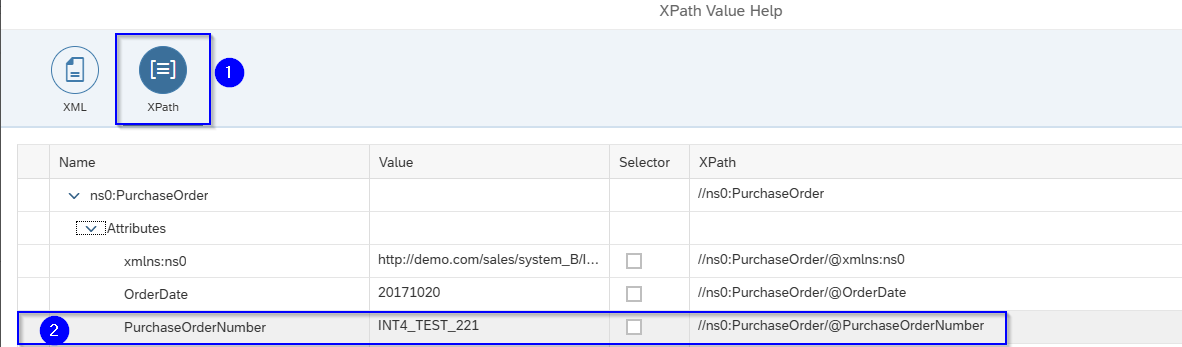
3. Choose how the value should be generated
-
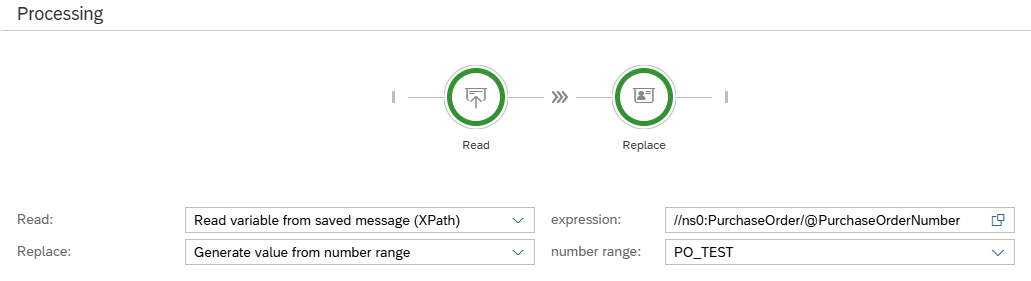
From the available actions in Replace, select Generate value from number range.

-
The system will prompt for a number range assigned to the Automation Object.
-
Since no number range exists yet, save the variable setup and move on to the next step to create one.
4. Create a number range for the variable
-
Navigate to the Number Ranges section.
-
Click Create.
-
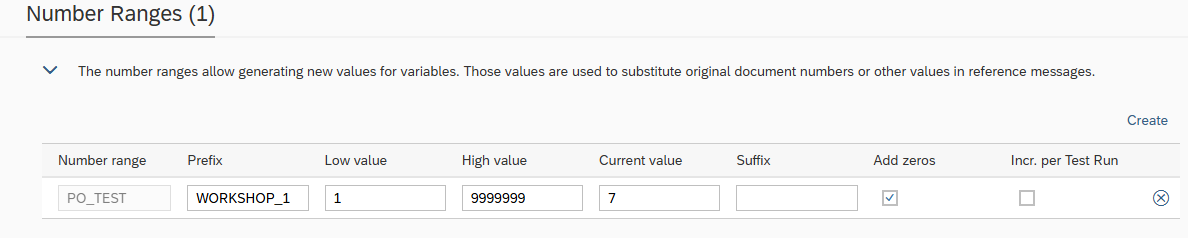
Fill in the number range details:
-
Name:
PO_test -
Prefix:
workshop_<X> -
Low value:
1 -
High value: any suitable upper limit
-
Enable Add zeros so the generated values include leading zeros
-
-
Save the number range.
5. Link the number range back to the variable
-
Return to the Variables section.
-
Open the PO variable again.
-
In the Number Range field, select the number range you just created (
PO_test). -
Click OK and then Save to finalize the configuration.
💡 Tip: In this example we created the local number range that is assigned to the Automation Object. You can create also global number range, that can be used in multiple AOs. You can do this in Configuration-> Define Global Number Ranges
6. Run the test and verify the variable value changes
-
Go back to Int4 API Tester.
-
Select the test case and send it to the test environment.
-
Open the test case execution details.
-
Confirm that the PO / Purchase Order variable was created.
-
Check the Before / After value:
-
Original: e.g.
INT4_test_221 -
Generated: e.g.
workshop_10001
-
7. Understand the benefit of the setup
Every time you execute the test case, a new unique value is generated. Benefits include:
-
Easy identification of each message in the middleware monitor
-
Easy traceability in the SAP backend (e.g. the resulting Sales Order)
-
Reliable repeated test runs without duplicate-document errors
-
A reusable variable that downstream validations (DB rules, IDoc output) can reference
Troubleshooting
|
Issue |
Likely cause |
Resolution |
|---|---|---|
|
Variable does not appear after execution |
Action type is not set to Read and Replace |
Re-open the variable and switch the action type |
|
XPath does not resolve |
XPath points to a node that does not exist in this payload |
Re-open the test case input message and copy the path again |
|
Value does not change between runs |
Variable not linked to a number range or doesn’t have any other Replace action |
Assign proper action in the replace step |
What's next
References
🎥 Full walkthrough on Loom: https://loom.com/share/af9cccd8dc5049deb080652093559c75
Variables and Variable processings: https://help.int4.com/int4-suite-knowledge-center-library/3.15/variables-variable-processing