.png)
How to Configure Fiori Services in Int4 Suite
Those activities should be done by Fiori Expert or Basis Expert
-
Open the service maintenance transaction
-
Go to the
/IWFND/MAINT_SERVICEtransaction. -
This is where you add and manage OData services for the system.
-
Add the Int4-related services
-
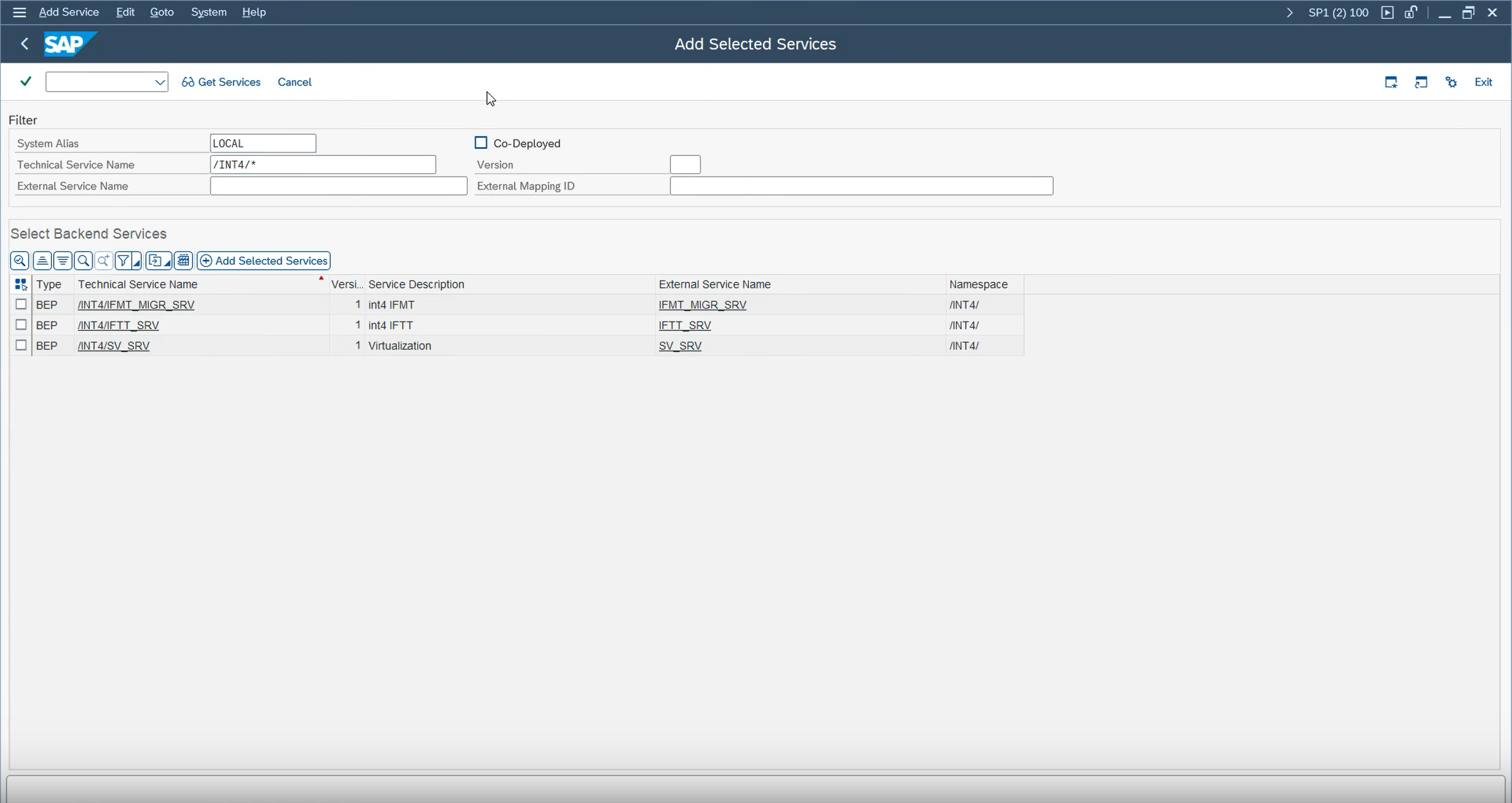
Click Add Service.
-
Search for the services related to Int4 Suite.
-
Make sure the System Alias is set to LOCAL.
-
Select all relevant services.
-
Click Add Selected Services.
-
Assign them to the
ZODATApackage. -
Choose or create the required Workbench Request and confirm.
-
Confirm the services were created
-
Verify that all selected services were created successfully.
-
Close the confirmation window and return to the main screen.
Please note that the OData services are transportable between systems.
-
Enable soft state for the system/client
-
Enable Soft State for the current system and client.
-
Confirm that the setting is active.
-
If you plan to use Int4 Suite in other clients or systems, repeat this step there as well.
Please note that activating Soft State services is not transportable and must be done manually in each system.
-
Adjust ICF session timeout for IFTT_SRV before enabling soft state on the service
-
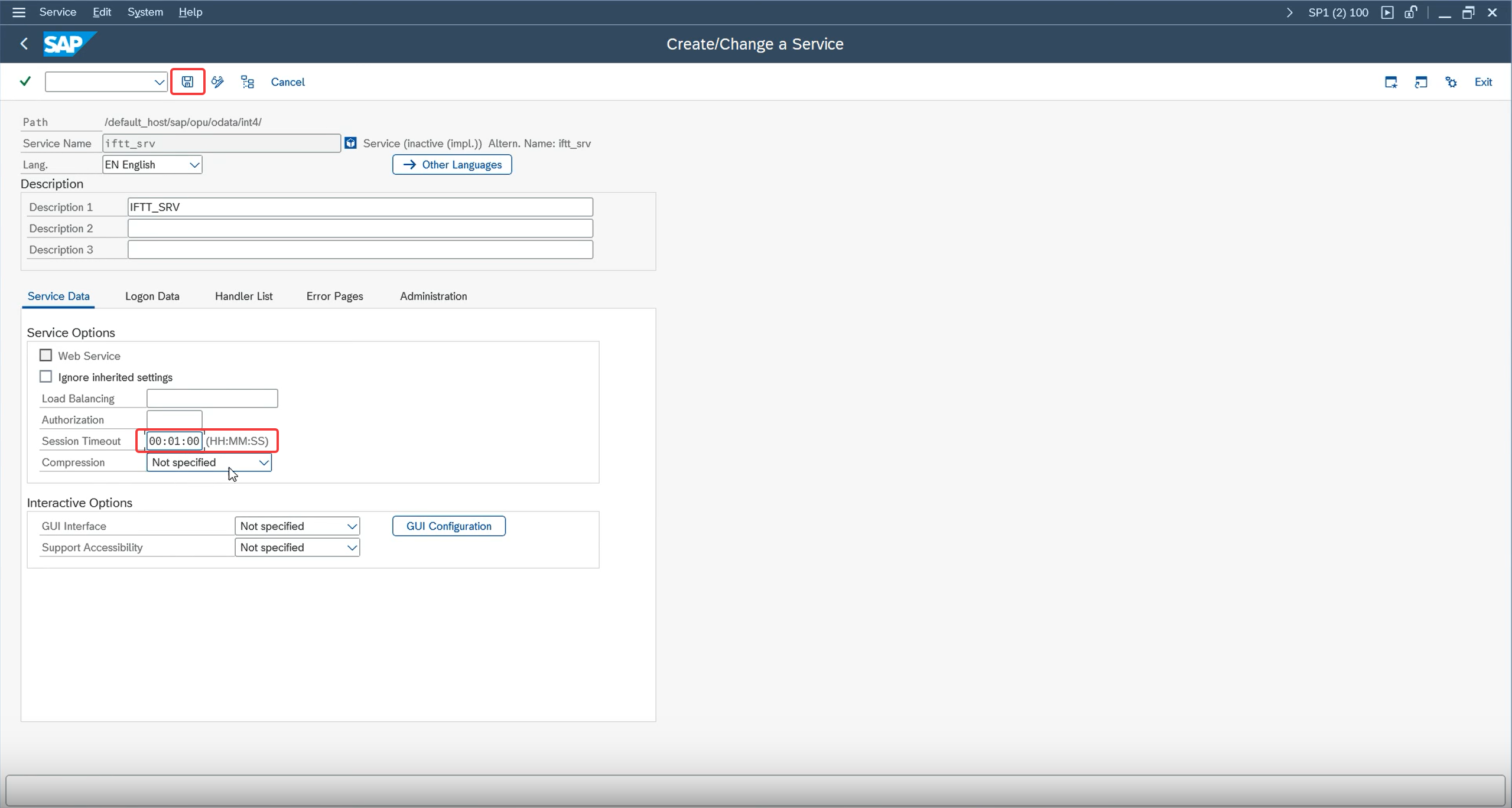
Return to the service maintenance area and locate the target service.
-
Open the ICF configuration.
-
Switch to Edit mode.
-
Set the session timeout to 1 minute.
-
Save the change.
-
Enable soft state for IFTT_SRV service
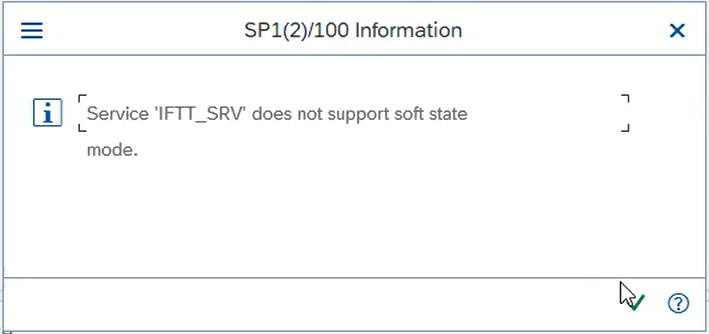
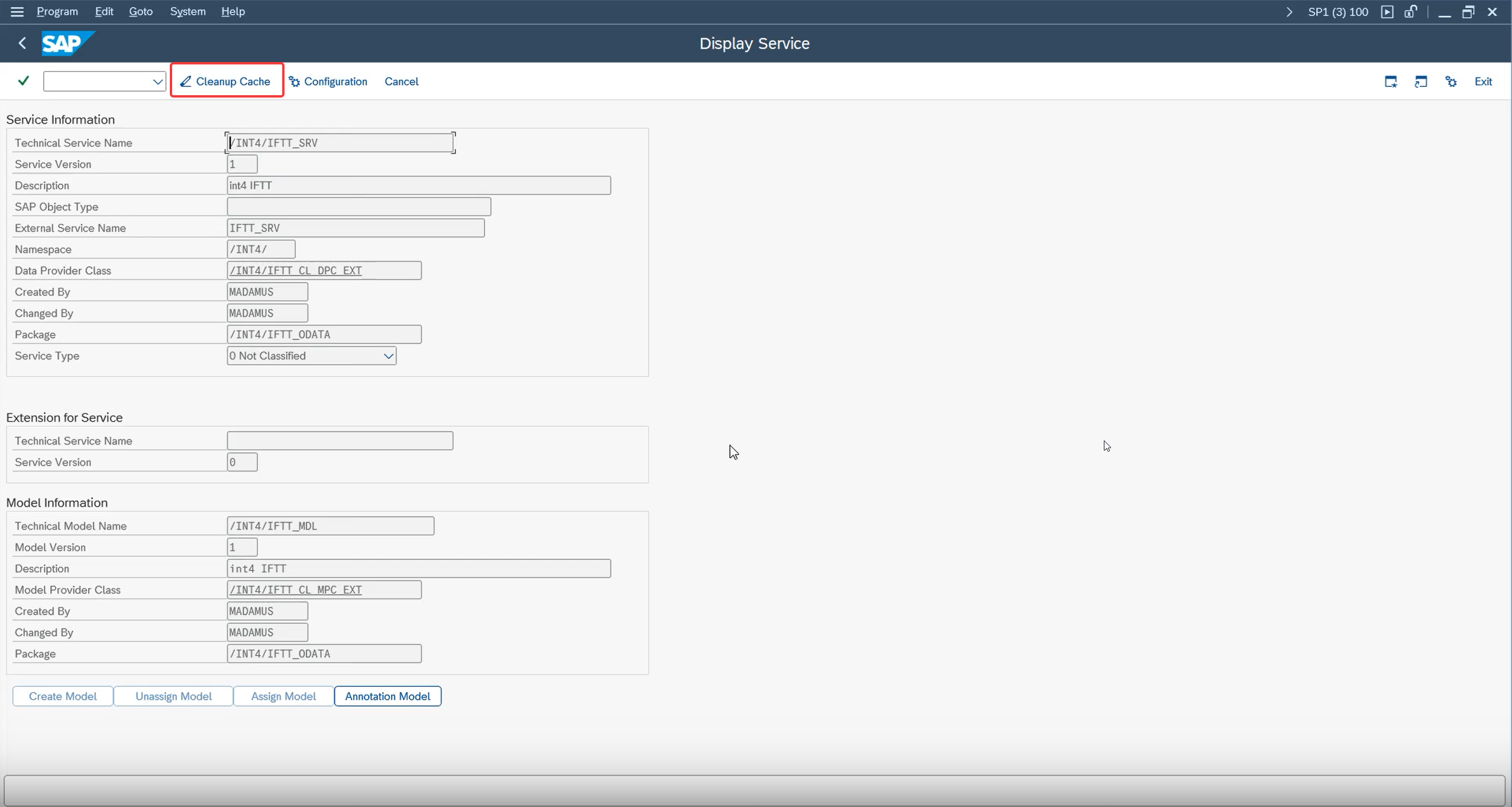
If you face issues during soft state activation:
Try to Load metadata(1). If issue still occurs, go to Service Implementation(2)
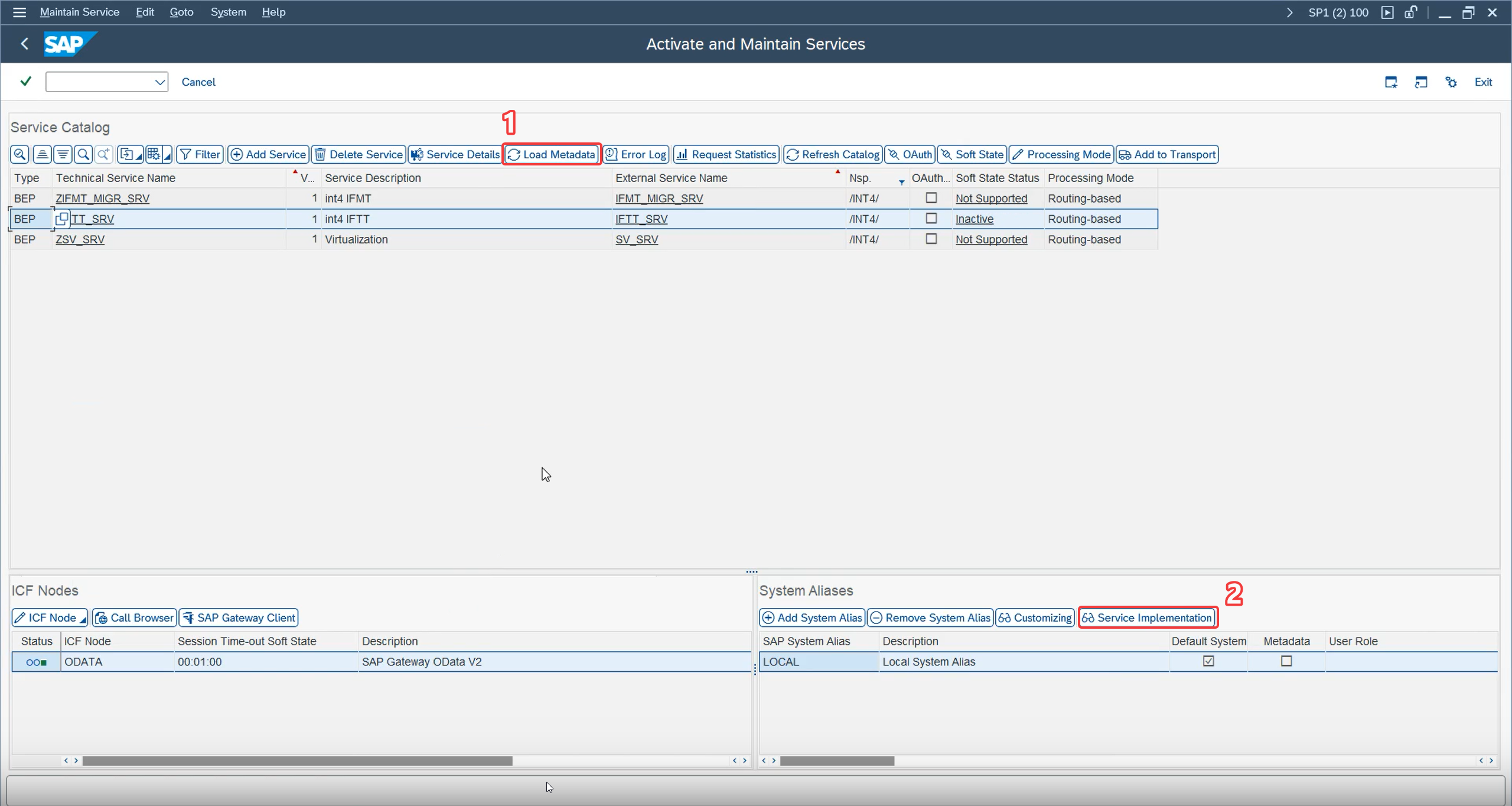
Click on Cleanup Cache:
-
After the session timeout is set, go back to the service.
-
Enable Soft State for IFTT_SRV
-
Activate soft state for the service.
-
Verify completion
-
Confirm that the service configuration completed successfully.
-
The OData services are now configured and soft state is activated.
-
Enable all ICF nodes related to Int4 Suite services
-
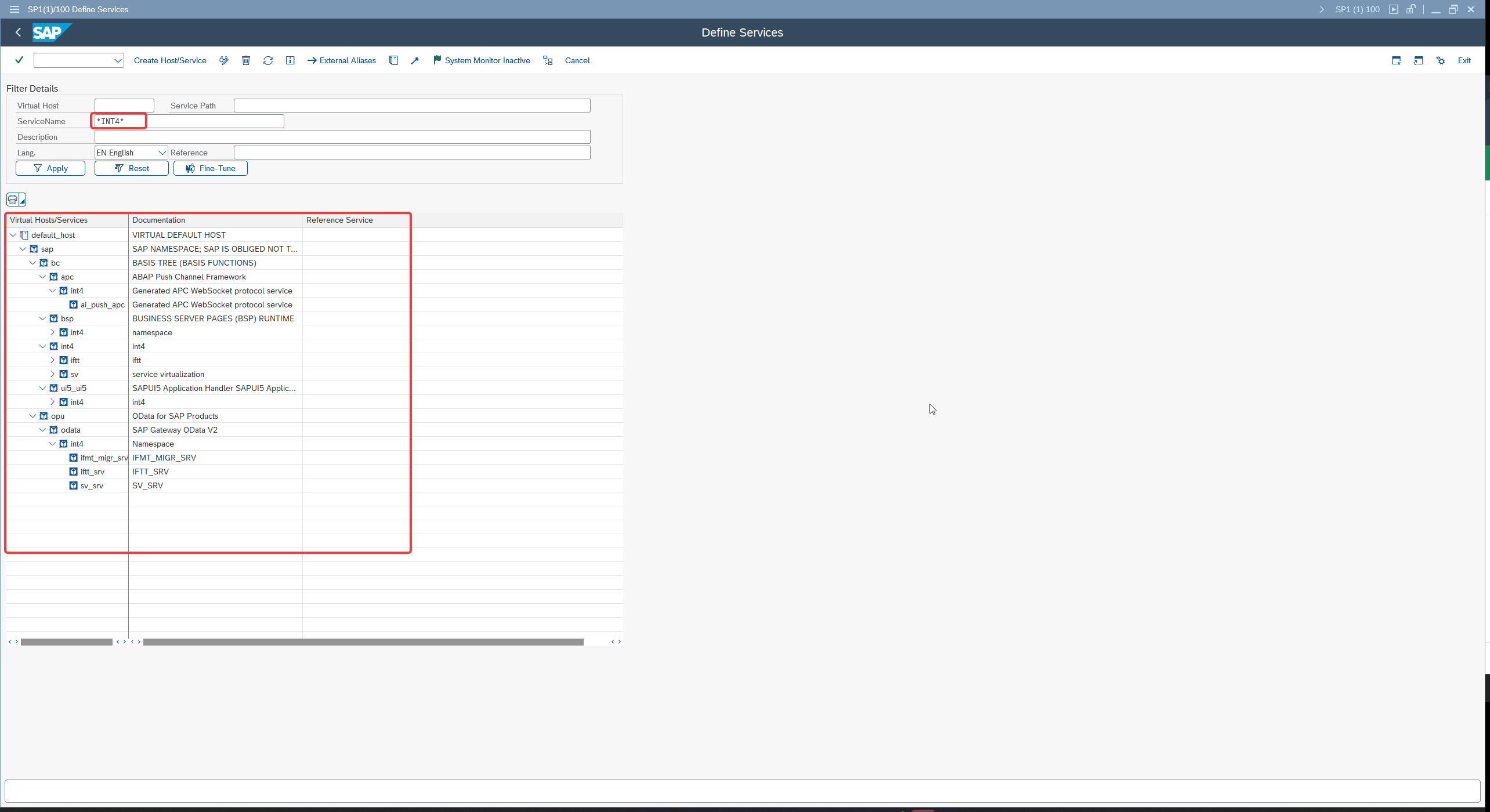
Go to transaction
SICF -
Find all services relevant to Int4 Suite
-
Make sure that all nodes of Int4 Suite services are active
-
Both parent and child services needs to be activated
Please note that SICF services activation is not transportable and must be done manually in each system.
-
Run report /UI5/APP_INDEX_CALCULATE report in Full mode