.png)
Configure Development and Production Environments for SAP PI/PO Connectivity
Those activities should be done by Security Expert or Basis Expert
-
Create the development RFC destination (Type G)
-
Go to transaction SM59.
-
Create a new destination of type G (HTTP connection to external server).
-
Name it according to your naming convention for the environment.
-
Enter the required:
-
Host
-
Port
-
User used for authentication
-
Path should remain empty
-
-
Save the destination.
-
Run a connection test to confirm the technical connection works.
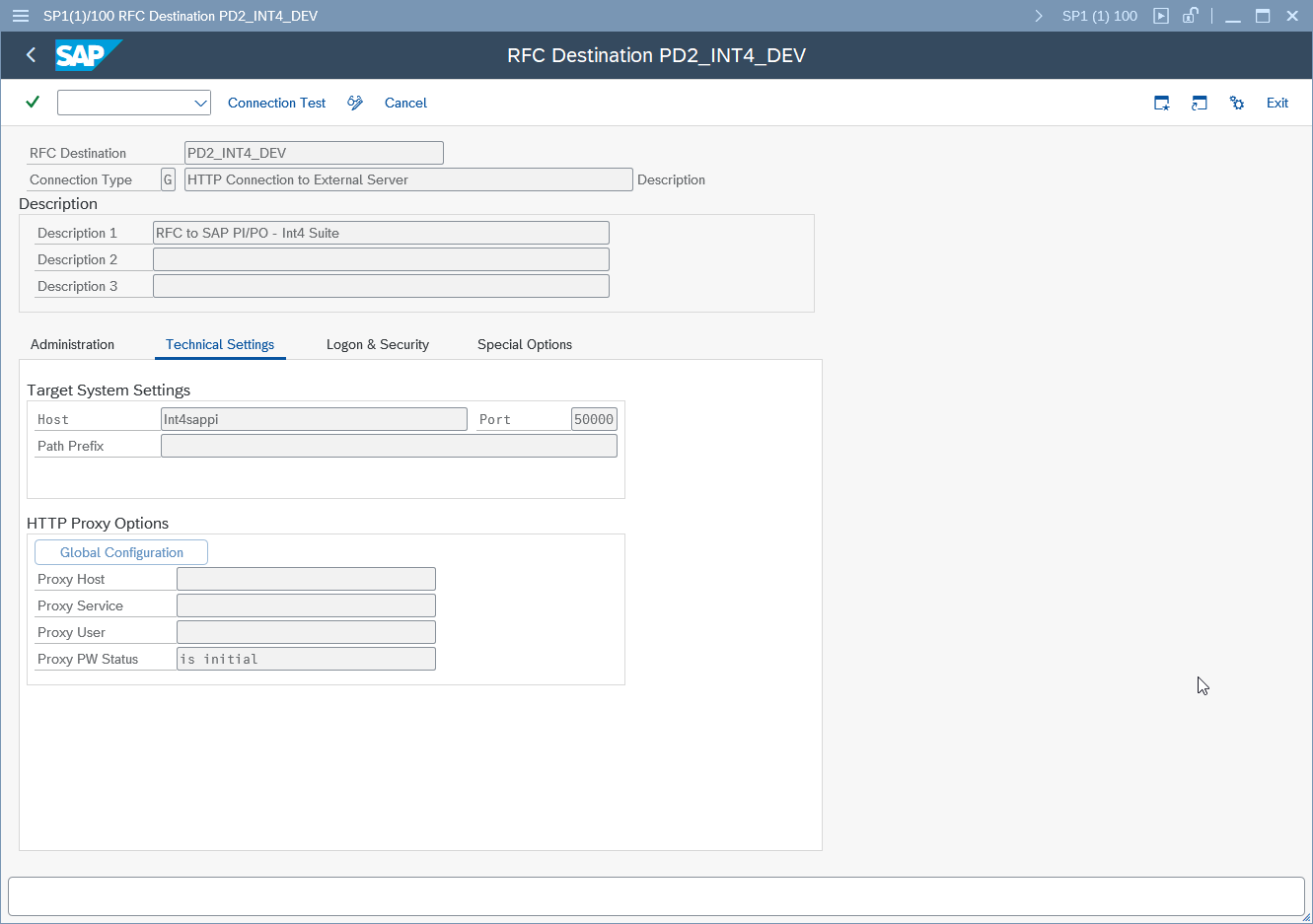
This test checks connectivity, not user authorization.
-
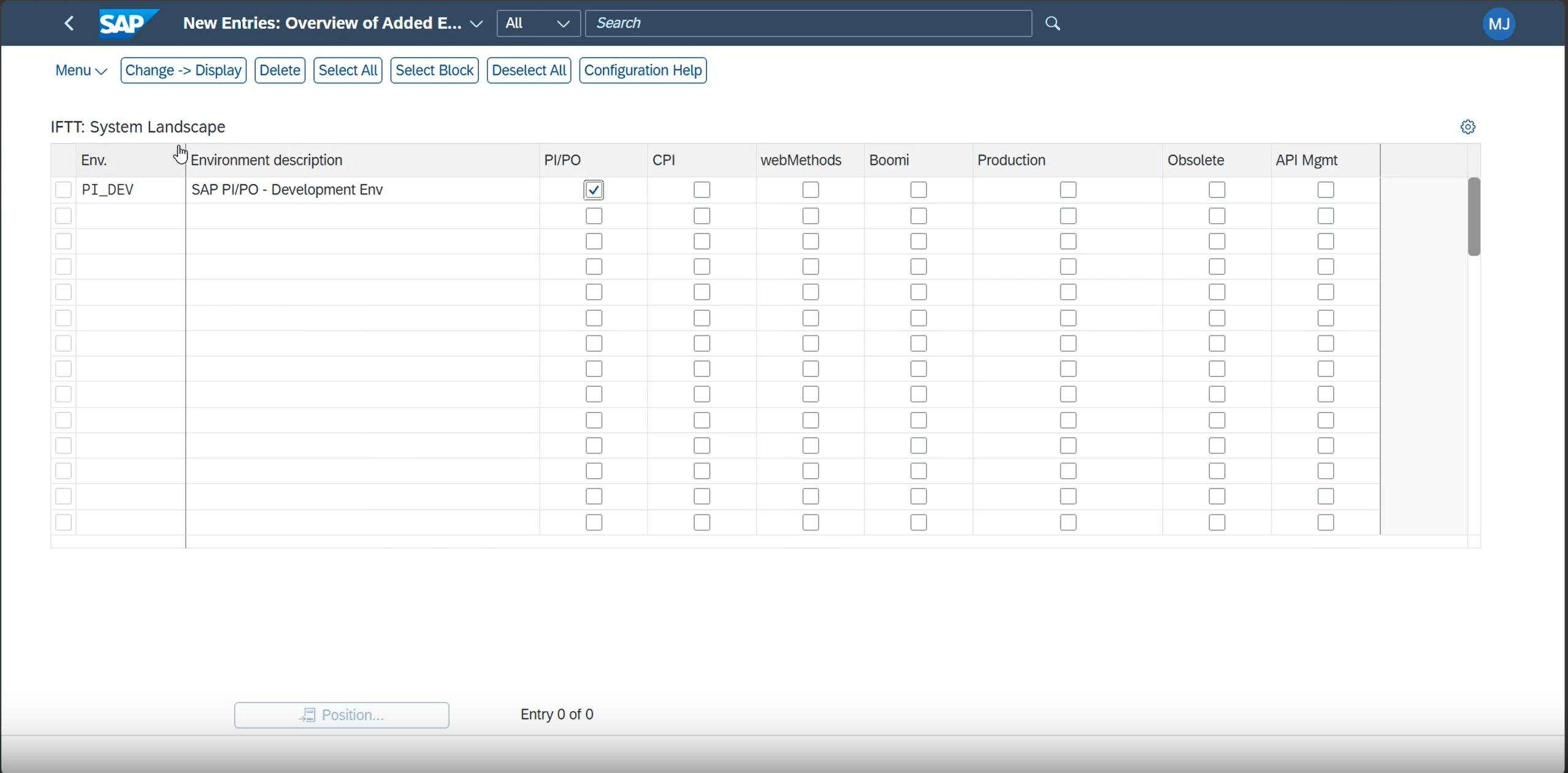
Add the development environment in the configuration app
-
Open the Fiori Launchpad.
-
Go to the Configuration application.
-
Use Find Environment and create a new environment entry.
-
Enter:
-
Environment name for development
-
Description
-
Select the relevant checkbox for the SAP PI/PO setup
-
-
Save the entry.
-
Return to the configuration wizard and confirm that new environment-specific options now appear.
-
Assign the development destination and verify connectivity
-
In the wizard, open the development environment setup.
-
Click Customize.
-
Select the previously created RFC destination from the list.
-
Continue and run the connectivity check.
-
Confirm the status is green.
-
Repeat the check for any remaining development-related entries.
-
Use Check Connectivity to verify all selected entries return a successful ping.
-
Create the production RFC destination (Type G)
-
Create another Type G RFC destination for production.
-
Follow the same naming convention, but use the production identifier.
-
Reuse the same host and port if there is no separate production system.
-
Switch to the security/properties section.
-
Maintain the user and password for production access.
-
Save the destination.
-
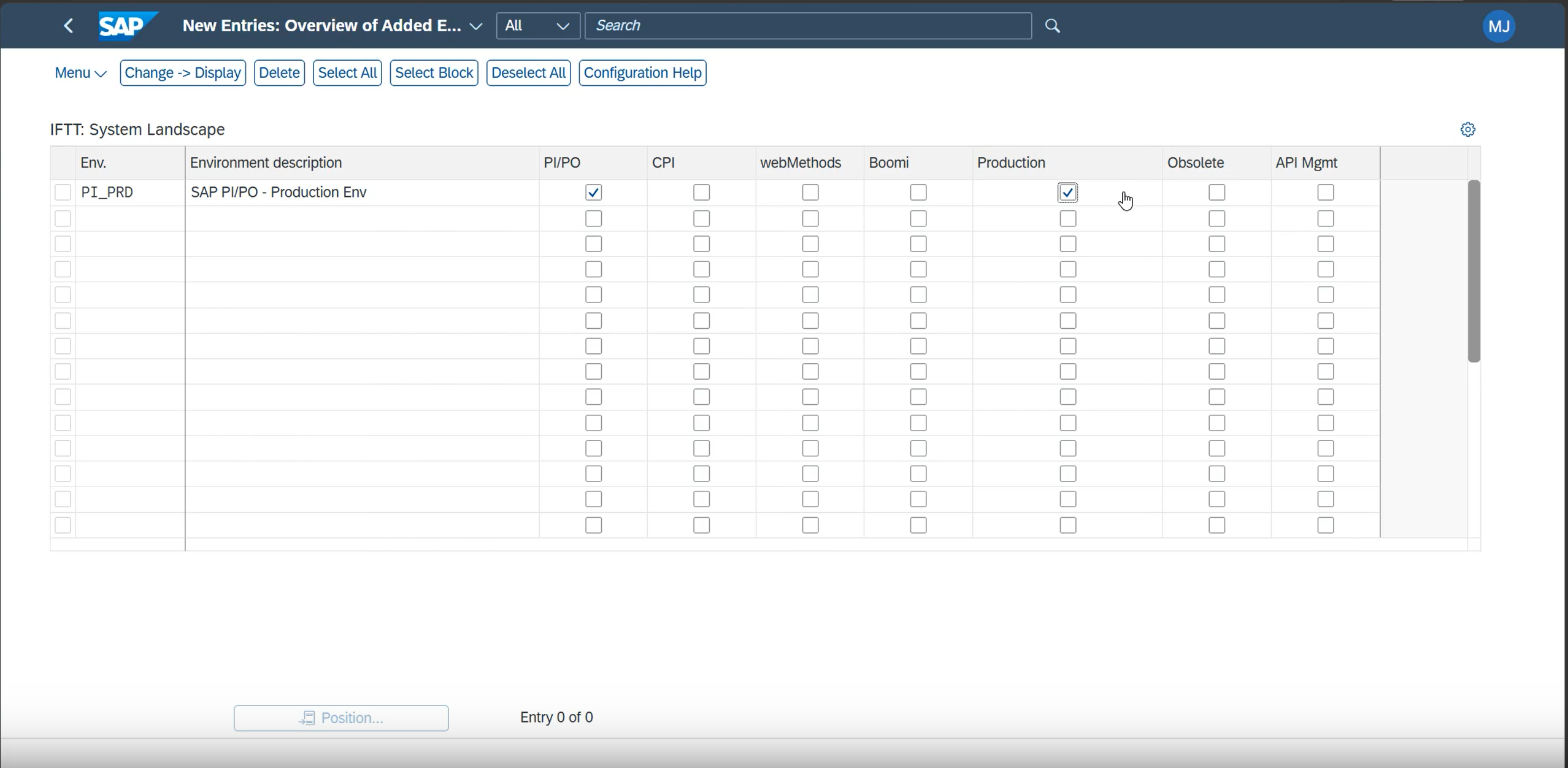
Add the production environment in the configuration app
-
Go back to Landscape Configuration and Define Environments.
-
Create a second environment entry for production.
-
Enter:
-
Environment name for production
-
Description
-
Select the relevant SAP PI/PO checkbox
-
Enable the Production checkbox
-
-
Save the entry.
-
Return to the configuration wizard and confirm the production-specific settings now appear.
-
Assign the production destination and validate it
-

In the wizard, assign the existing production destination.
-
Run the connectivity check.
-
Confirm the response is successful.
-
For production, only the essential activities are needed:
-
Maintain logical port for PI/PO API web service proxy /INT4/CO_IFTT_ADAPTER_MSG_MONI
-
Maintain logical port for PI/PO API web service proxy /INT4/CO_IFTT_INTEGRATED_CONFI
-
Maintain logical port for PI/PO API web service proxy /INT4/CO_RECEIVER_DETERMINATIO
-
-
Verify connectivity for each required item.