.png)
-
Create the required SAP Process Integration Runtime instances
This activity should be done by SAP BTP administrator
-
In SAP BTP, create the SAP Process Integration Runtime service instance for API plan.
-
Assign the required roles listed in the video description.
-
Create a second SAP Process Integration Runtime instance for the integration-flow plan.
-
If you use custom roles, add them during setup; otherwise keep the default roles as-is.
-
Finish both instance creations before moving on.
Roles for api plan:
-
AuthGroup_BusinessExpert
-
CatalogPackageArtifactsRead
-
CatalogPackagesRead
-
DataStorePayloadsRead
-
DataStoresAndQueuesRead
-
MessagePayloadsRead
-
TraceConfigurationEdit
-
TraceConfigurationRead
-
WorkspacePackagesRead
-
WorkspacePackagesEdit
-
WorkspaceArtifactsDeploy
-
WorkspacePackagesConfigure
Roles for integration-flow plan:
-
ESBMessaging.send
-
Create and download service keys for both instances
-
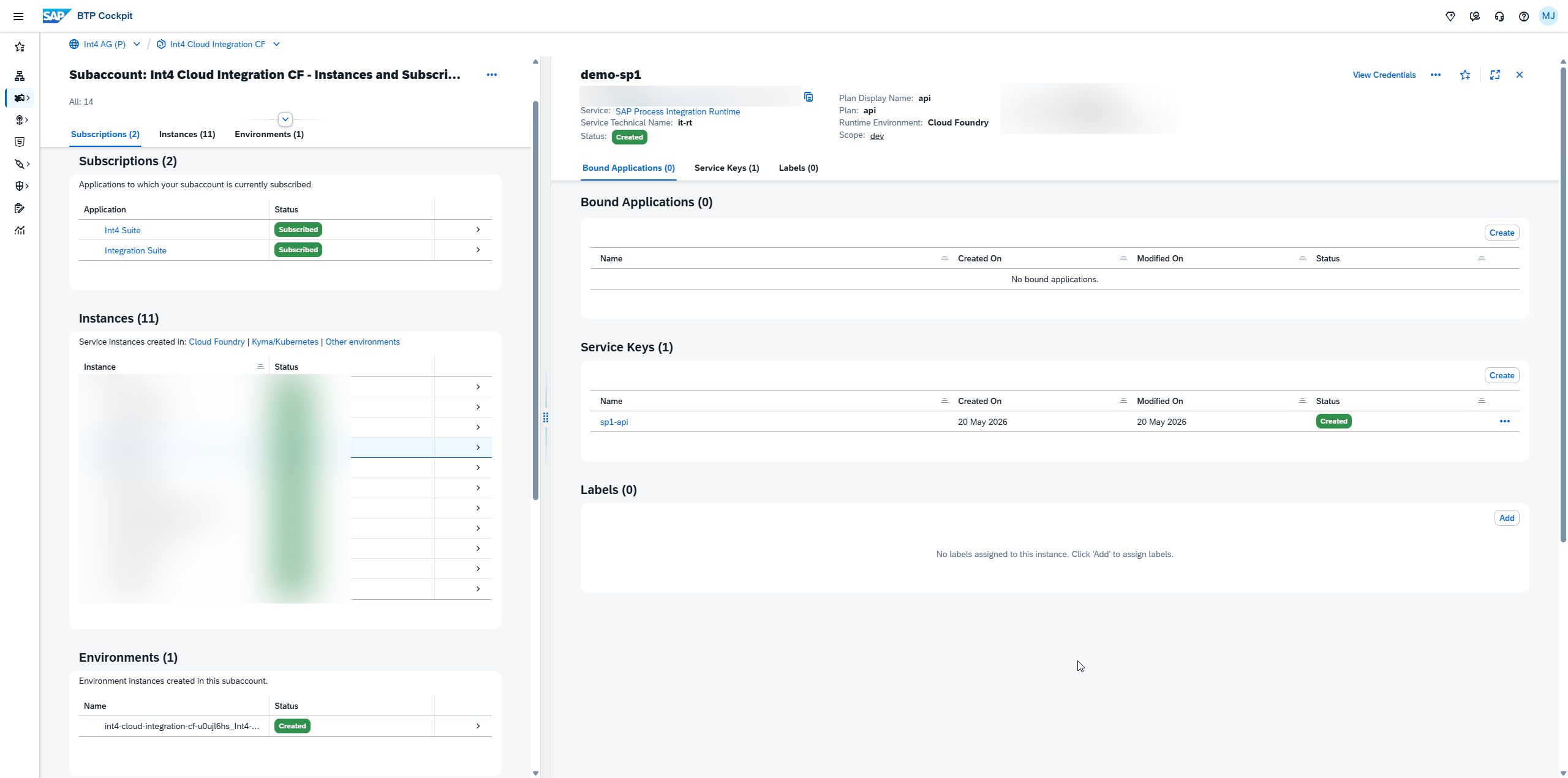
For the api instance, create a service key.
-
Download the generated key and save it for later use.
-
Repeat the same process for the Integration Flow instance.
-
Make sure both service keys are available before continuing.
-
Download the SAP Integration Suite certificate and add it to the service key

-
Open SAP Integration Suite.
-
Go to the Keystore and locate the certificate named sap_cloudintegrationcertificate.
-
Download the certificate and keep it ready.
-
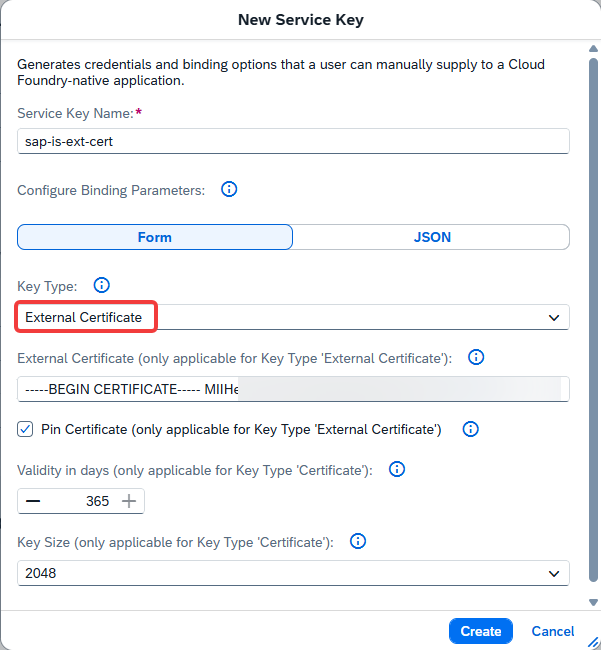
Return to the service key / instance setup and paste the full certificate value into the certificate field.
-
Create the entry so the certificate is installed in the service key configuration.